
Connect VCC Release 26.07.07+2
Commercial Updates
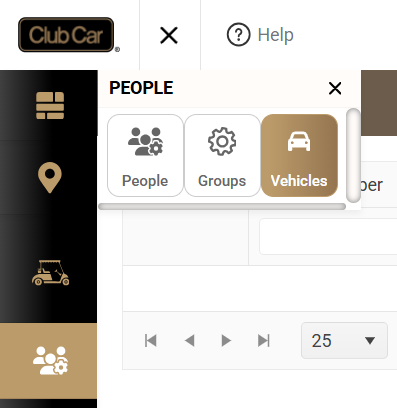
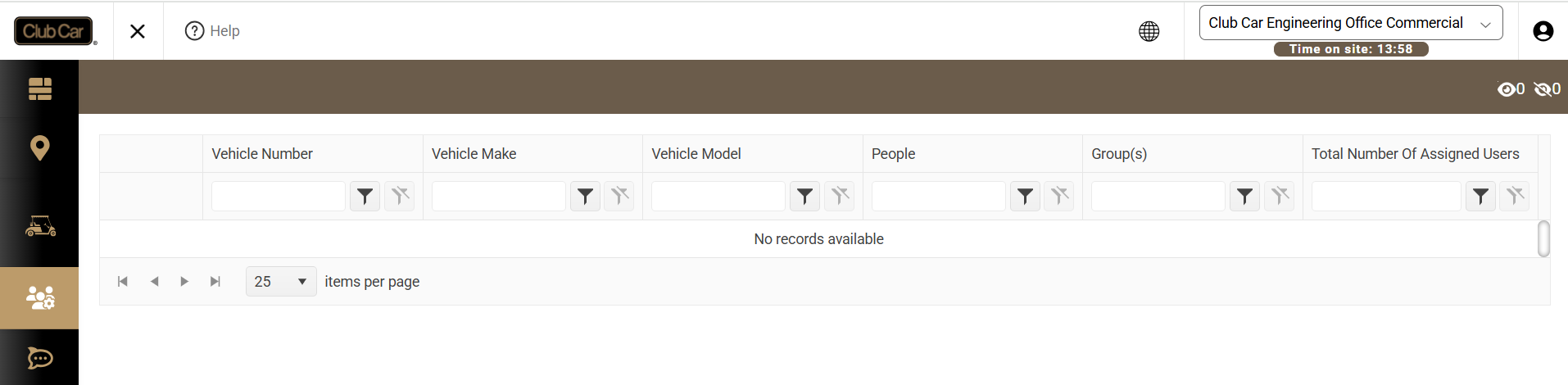
This release introduces the Commercial People page, including tools for managing people, RFID credentials, CSV imports, and groups. It also adds a Vehicle tab prepared for functionality in a future release.
Enabling the Commercial People Page
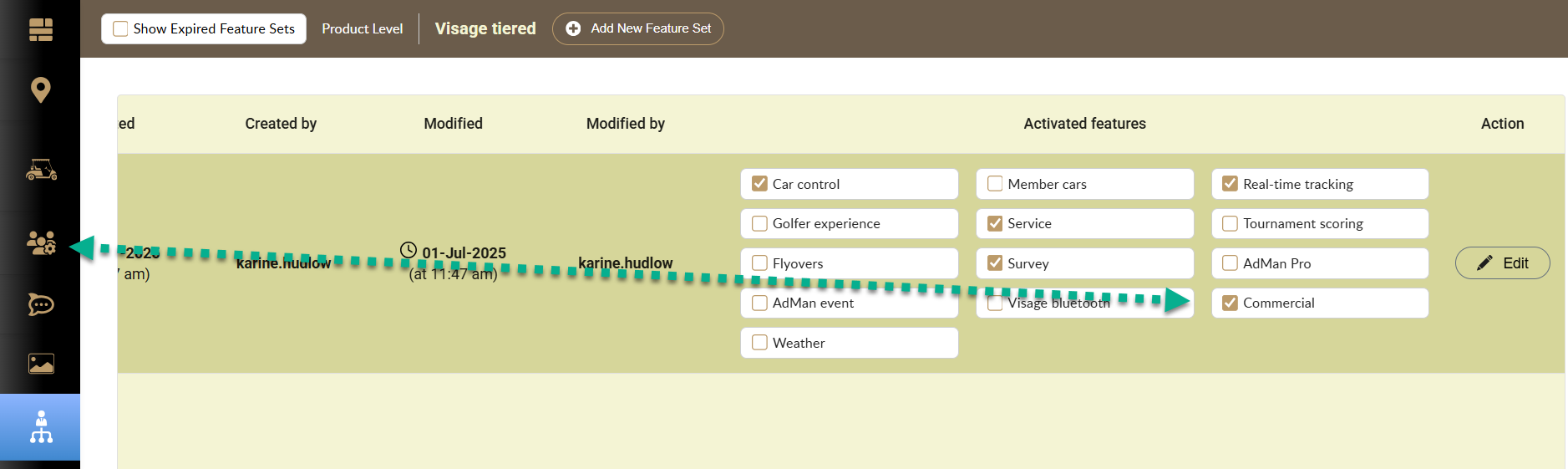
The People page becomes available from the menu bar after the Commercial feature checkbox is selected and the change is saved.
People Page
Filters and status counts
The People page includes toolbar filters for narrowing the displayed records.

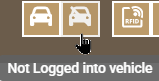
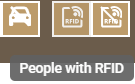
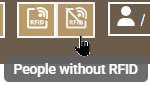
The Show Inactive control displays people whose individual records have the Inactive checkbox selected.


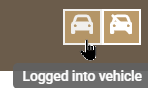
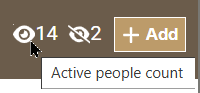
Two visual indicators show the number of active and inactive people in the list. These counts update when Show Inactive is toggled.

Column filters
Each column provides its own filter.

Records per page
The page-size selector offers All, 15, 20, 25, 30, 40, 50, 100, 150, 200, and 250 records. The default is 25. Pagination adjusts when a different page size is selected.

Adding and Editing People
Add a new person
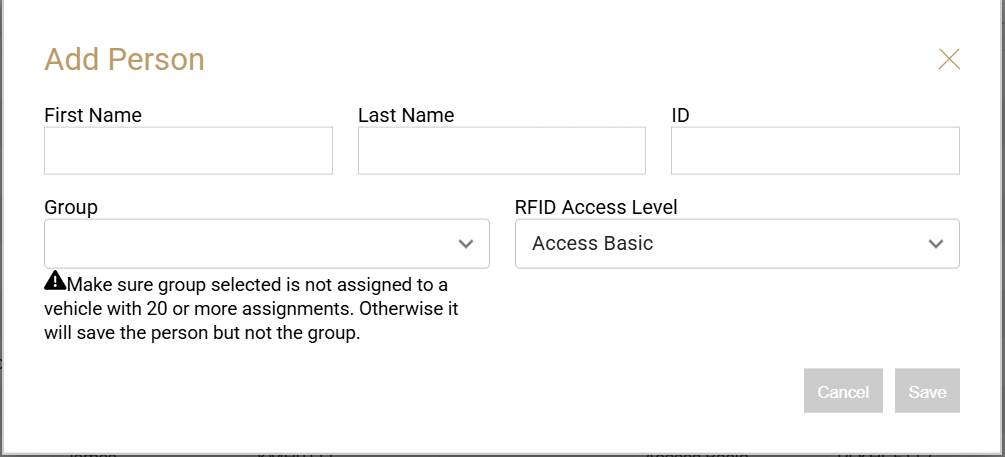
From Commercial > People > People, select Add on the toolbar to create a person.

- The RFID Access Level defaults to Access Basic.
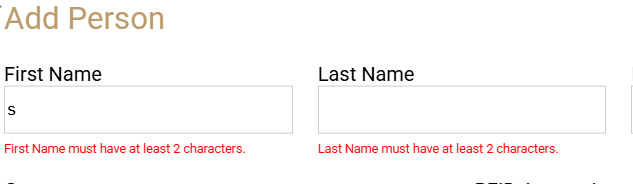
- First Name and Last Name require at least two characters.
- Entering content in a field enables the Save button.
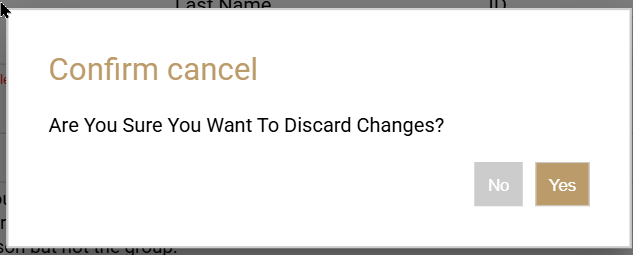
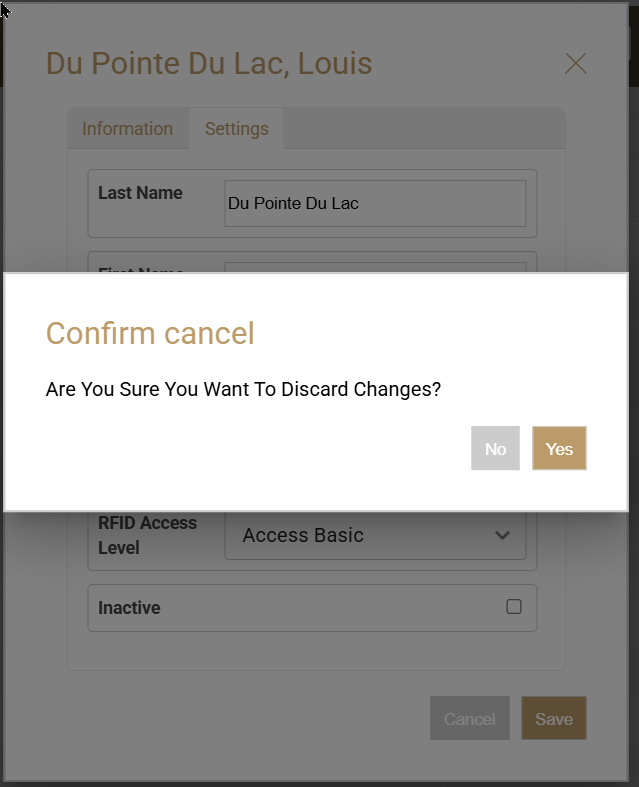
If information has been entered, selecting the X or Cancel prompts the user to confirm that the changes should be discarded.
Edit an existing person
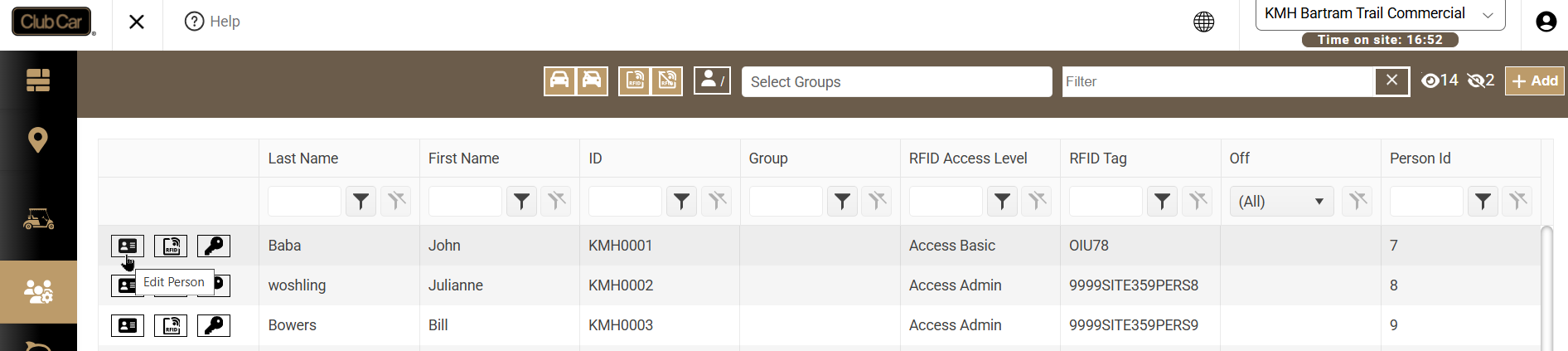
Select the Edit Person control for the applicable record.
The Settings tab allows authorized users to edit information shown on the Information tab.
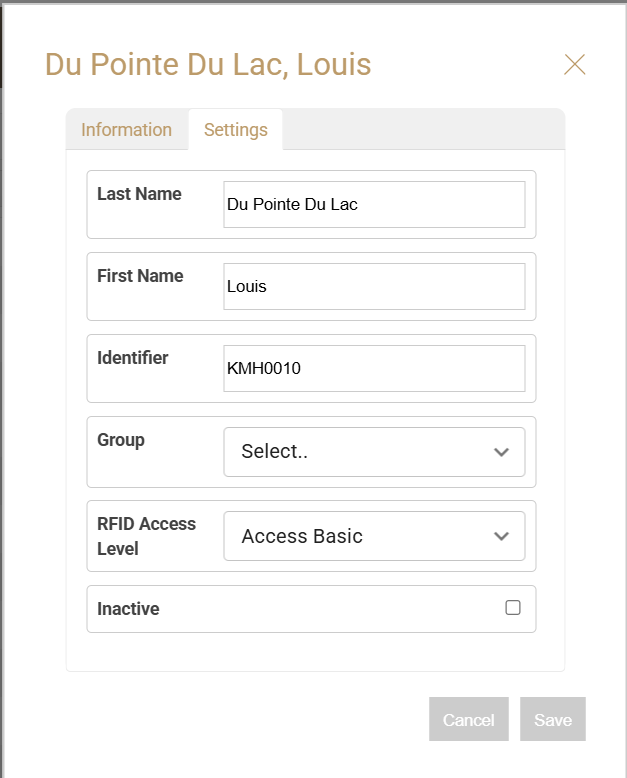
Closing or cancelling after making unsaved changes displays a confirmation:
- No: Closes the warning and returns the user to the form.
- Yes: Closes the form without saving the changes.
RFID Management
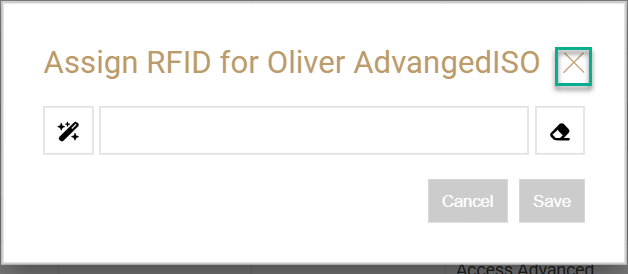
RFID credentials can be entered in three ways:
- Read an RFID card or fob with a supported reader.
- Use Auto-Generate RFID when no fob is available.
- Enter the RFID manually.
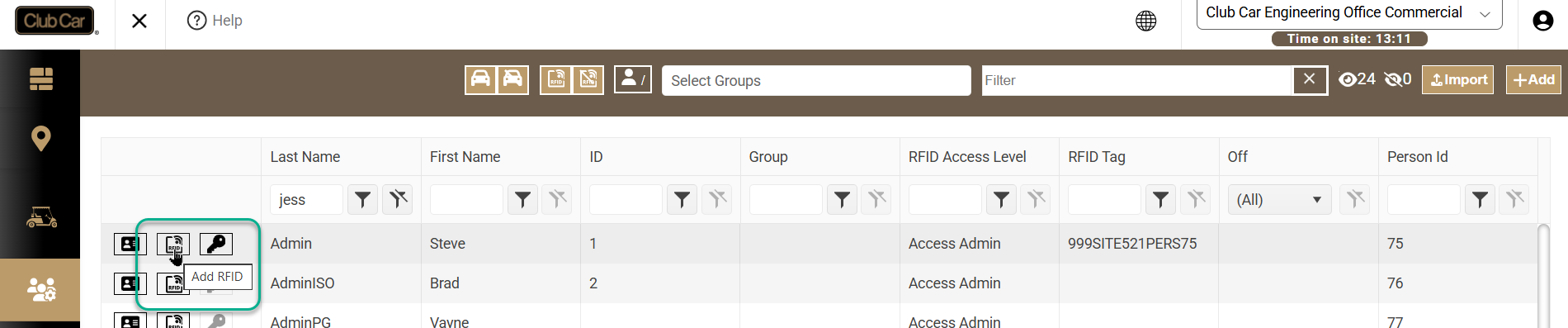
A Clear RFID control is also available. After an RFID is entered manually or read from a credential, the Edit Permission control becomes enabled.

Selecting the permission control displays a warning because an RFID must be assigned to a vehicle.
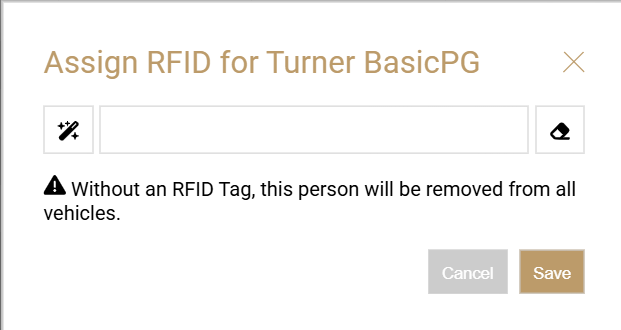
The system then requests confirmation:
- No: Closes the confirmation and returns to the Assign RFID dialog.
- Yes: Continues to the next message in the RFID assignment process.
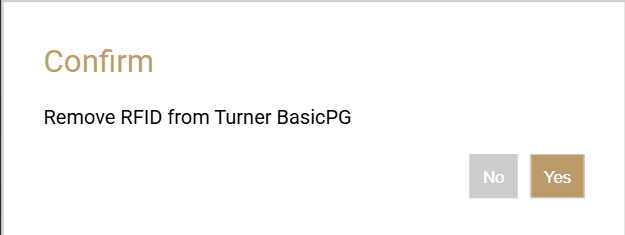
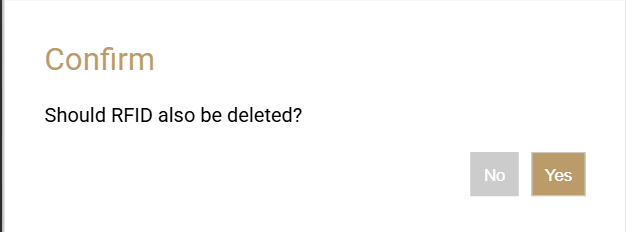
Select the X in the upper-right corner to close the RFID window.
Importing People
The Import feature allows multiple people to be added quickly.

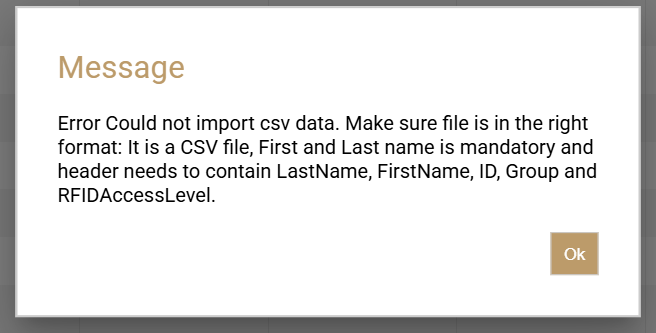
The import file must use CSV format and contain the required column headers in the specified order. Group and ID values are optional.
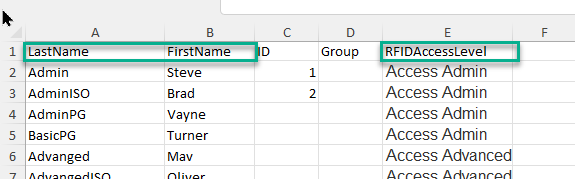
If the file type or contents do not meet the import requirements, the system displays an error.
Groups
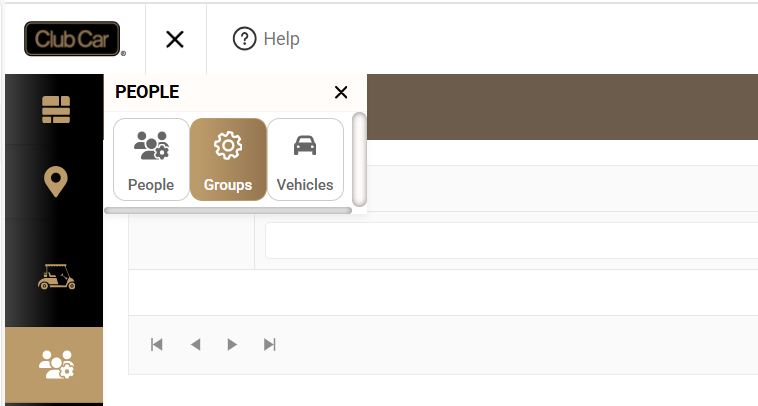
The Groups tab provides tools for creating and managing groups.
Add a group
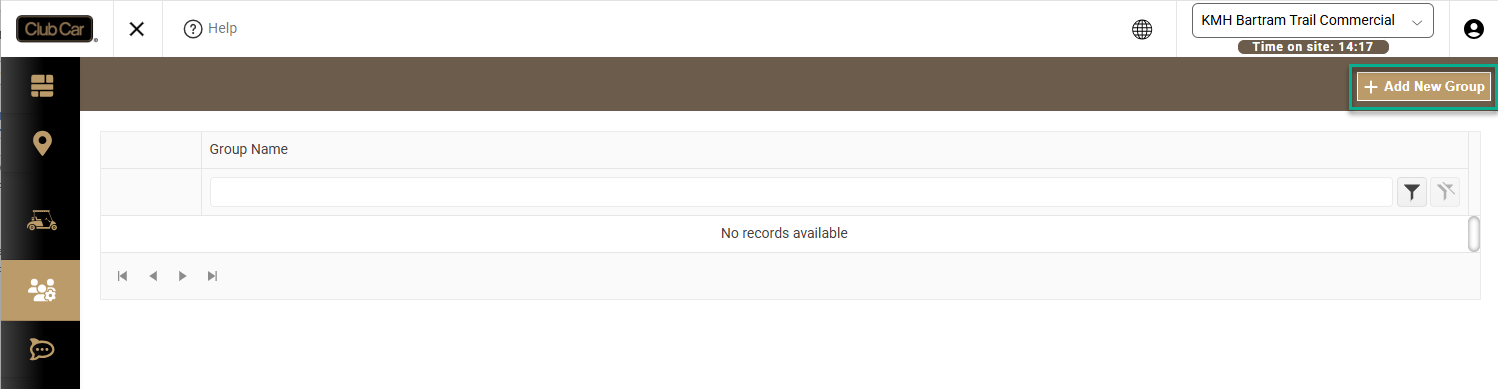
Select Add New Group. Entering a group name enables Cancel and Save.
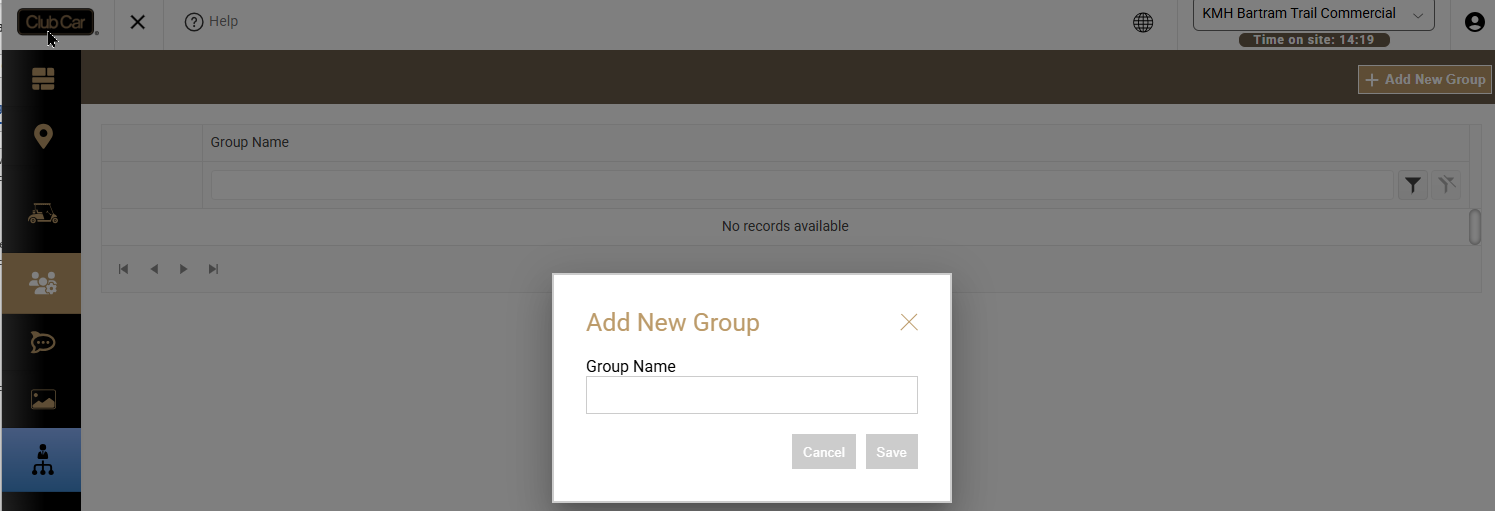
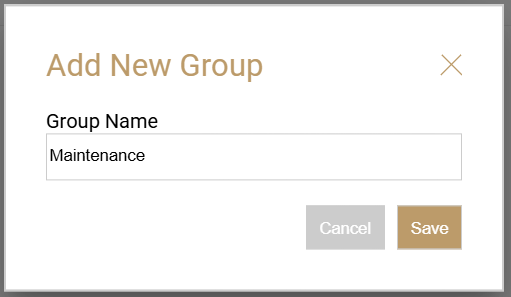
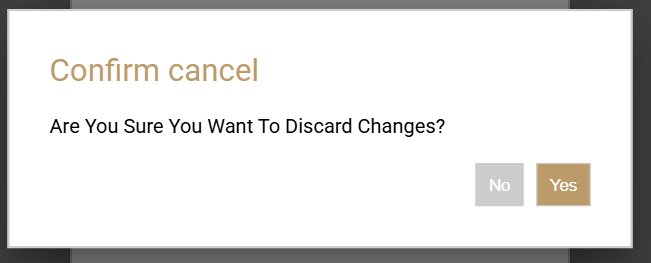
Selecting Cancel after entering information displays a confirmation:
- Yes: Closes the Add Group dialog without saving.
- No: Closes the warning and leaves the Add Group dialog open.
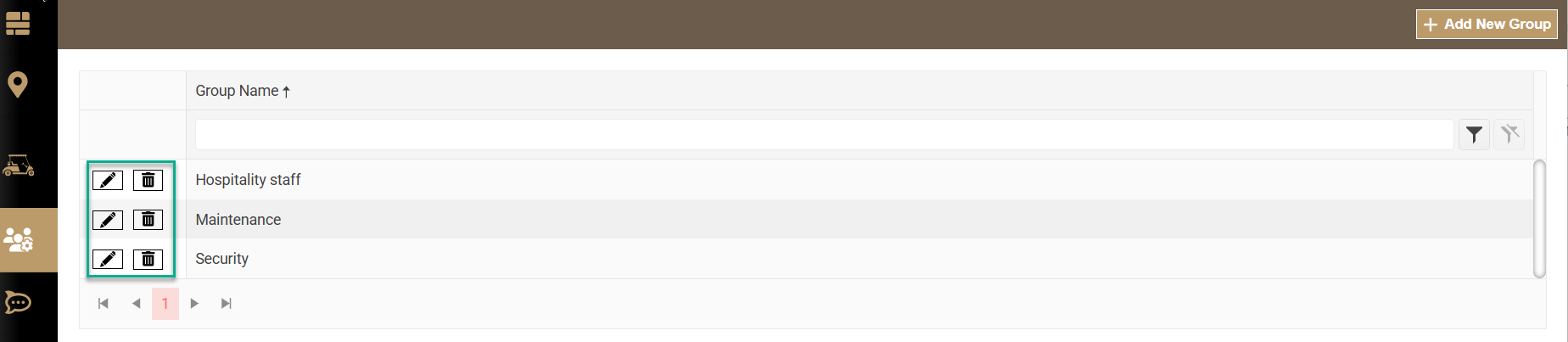
Edit, delete, and filter groups
Every saved group includes Edit and Delete controls.
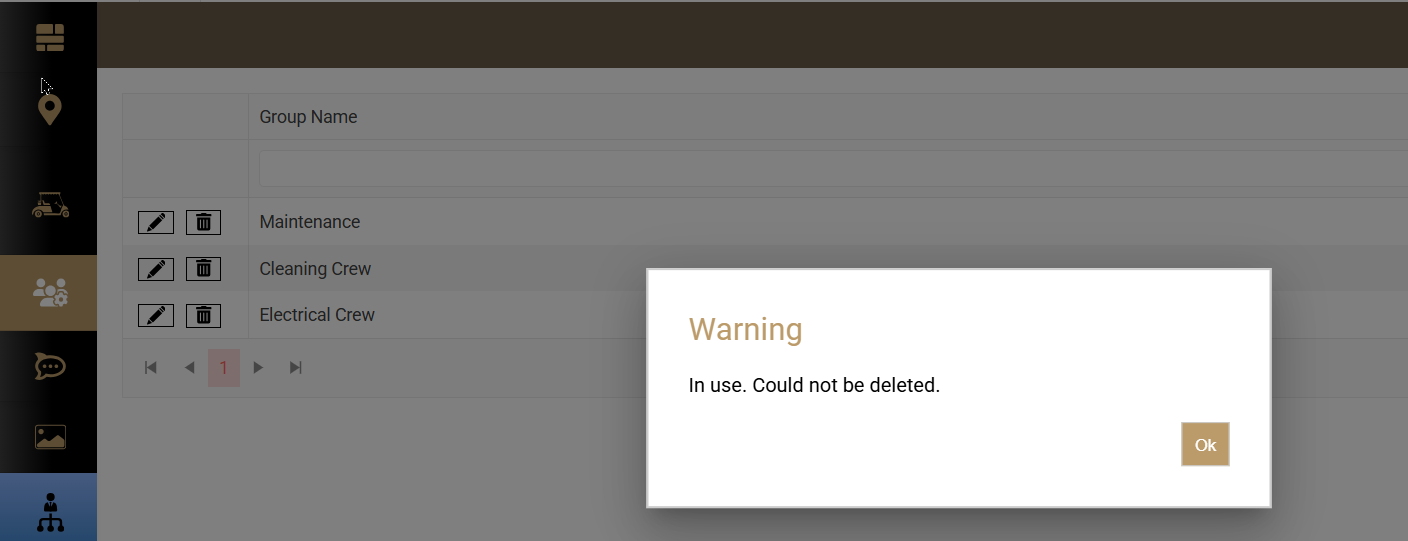
Deletion restriction: A group cannot be deleted while people are assigned to it.
Group records can also be located using the available search filters.

Assign people to a group
People can be assigned to groups in three ways:
- Enter the group name in the corresponding CSV column during import.
- Select a group while manually adding a person.
- Select a group while editing an existing person.

Vehicle Tab
The Vehicle tab has been added and is ready to support vehicle data in a future release. No vehicle-management functionality is included in this release.