
Connect VCC Release 26.07.07+2
Dashboard Updates
This release removes four legacy dashboard tiles and introduces navigation, reporting, pace-management, fleet-status, and course-management improvements throughout the Connect VCC dashboard.
Removed Dashboard Tiles
The following tiles have been removed from Dashboard:
- Car Behind Pace
- Fleet Readiness
- Fleet Utilization
- Battery Notification
AMP HR Report
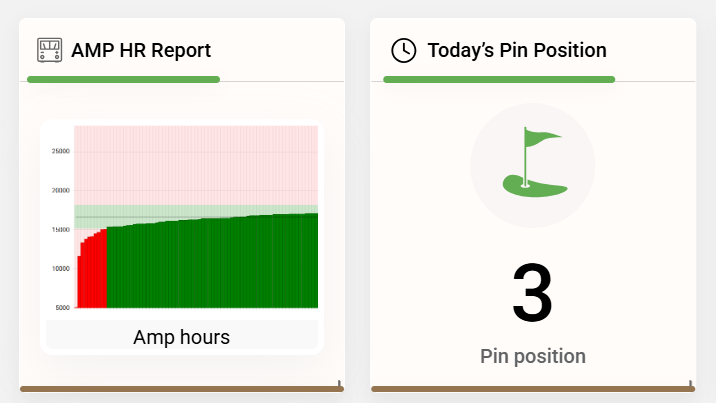
The AMP HR Report tile has a new image. Clicking the tile now takes the user to Fleet > Usage.
Welcome Screen
The Welcome Screen tile now shows the number of images in the carousel and rotates through the selected images.
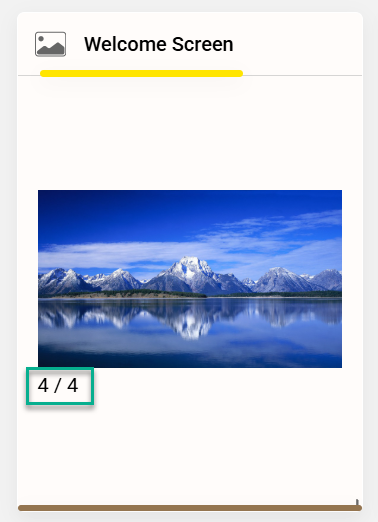
Current behavior: The tile shows the number of images selected for the currently active campaign whose date matches, whether that campaign is published or unpublished. The tile does not currently select today's message. The VDU continues to display the message configured under Fleet > Settings > Round Management > Welcome Screen.
Today's Pin Location
Sites with an EzLocator subscription
For subscribed sites, the tile displays the EzLocator logo. Clicking the tile opens the EzLocator website in a new window.
Sites without an EzLocator subscription
The tile displays today's pin location based on the Connect VCC pin rotation.
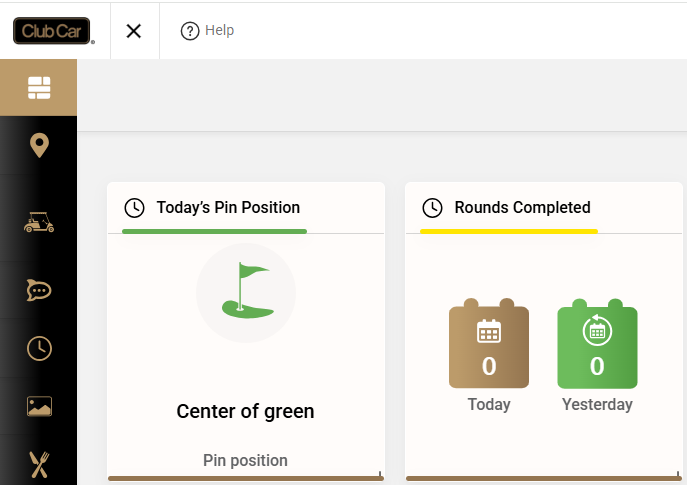
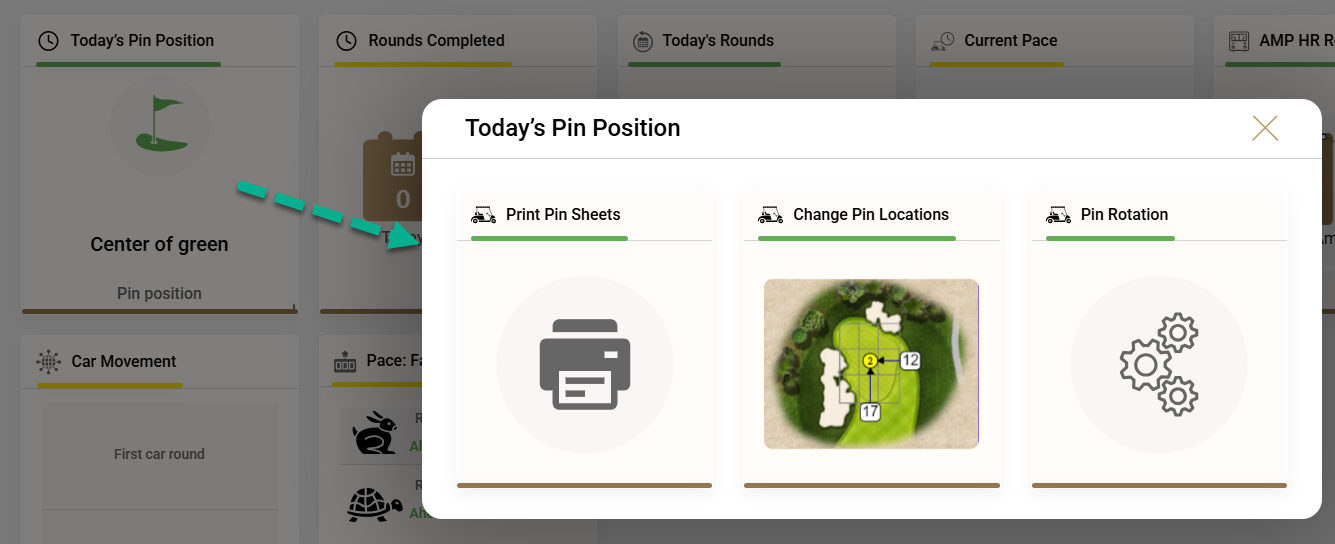
Clicking the tile presents three drill-down options:
- Print Pin Sheets: Opens Pins > Pin Placement > Print Pin Sheet.
- Change Pin Location: Opens Pins > Pin Placement > Edit.
- Pin Rotation: Opens Pin Rotation Setup.
Pace
The Pace tile identifies the fastest and slowest qualifying rounds of the day by comparing completed and in-progress rounds against the target pace. A round ahead of target is shown in green; a round behind target is shown in red. If every round is ahead of target, the slowest of those rounds appears in the turtle section and remains green.
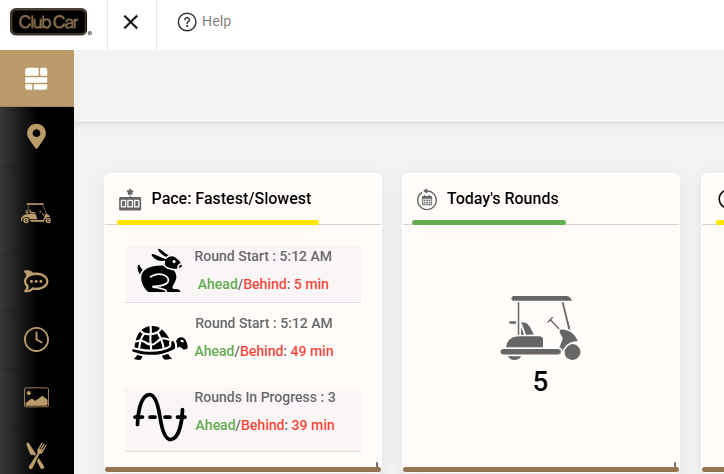
The system totals the target pace for the selected course according to the holes recorded in the RoundHoles table. This accounts for cars that have not completed every hole in a 9- or 18-hole course. It then compares that total with the round's start and end times in the Rounds table. A round is ahead of pace when the target-pace total is greater than the round duration; otherwise, it is behind pace.
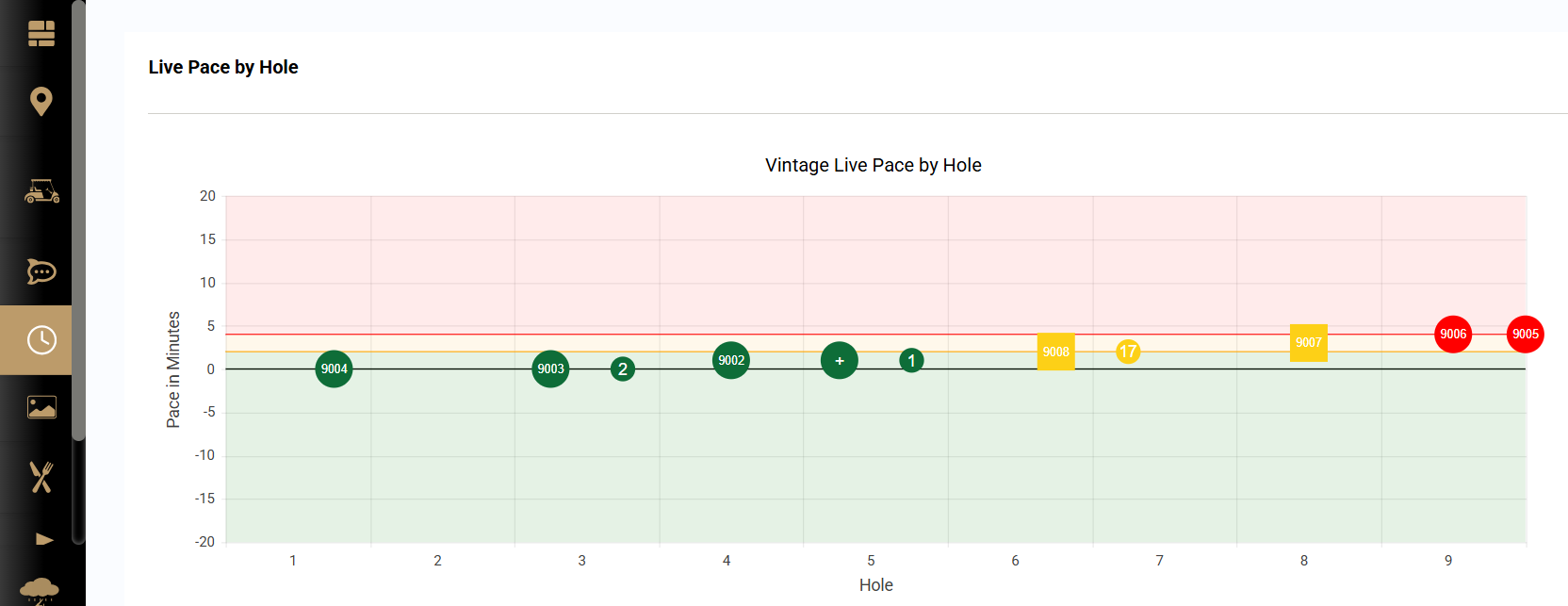
Clicking the tile opens the Current Pace Chart > Live Pace by Hole page.
Gap Management
A new Gap Management tile has been added under Golf Experience. It is disabled by default in Tile Management.
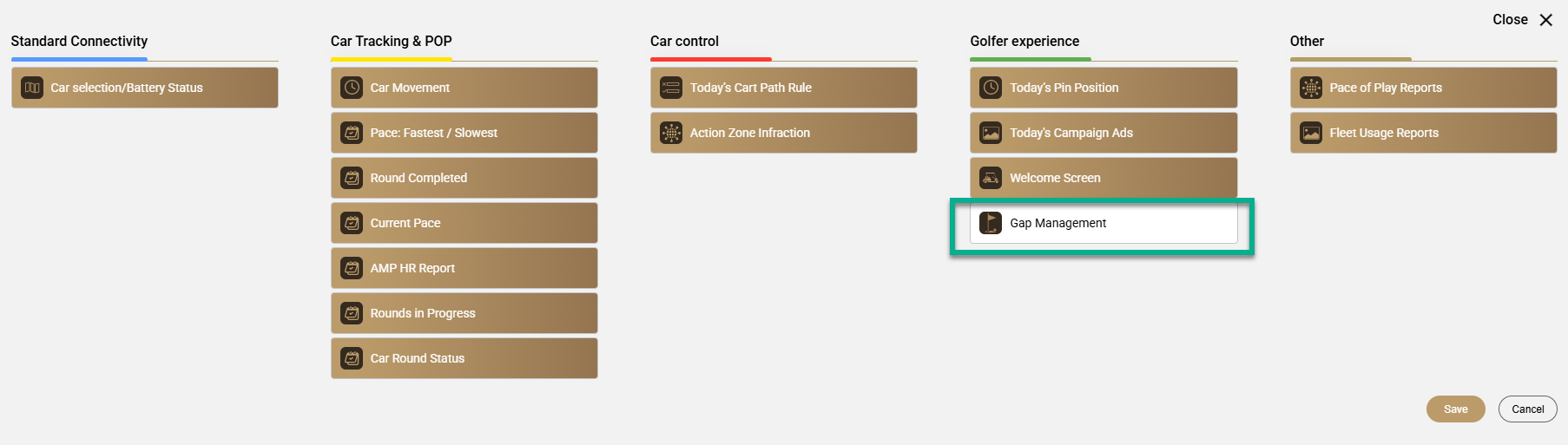
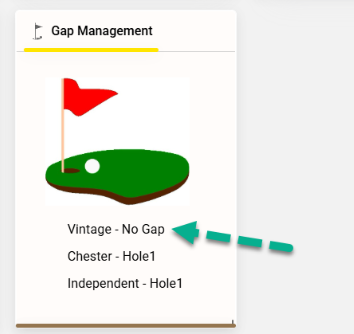
The tile identifies gaps where no hole is being played by a car in an active round. A car that simply drives onto the course without being in an active round does not count as occupying a hole.
- If multiple gaps exist, the tile shows the gap closest to Hole 1 or Hole 10. For example, if the gap extends from Holes 5 through 7, the tile displays Hole 5.
- If cars in active rounds occupy every hole, the tile displays No Gap.
- Clicking the tile opens the Live Pace by Hole page.
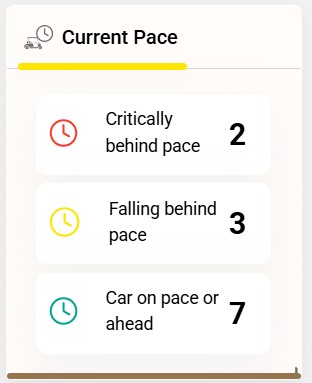
Current Pace
The enhanced Current Pace tile displays car counts in three categories:
- Critically Behind Pace
- Falling Behind Pace
- On Pace or Ahead
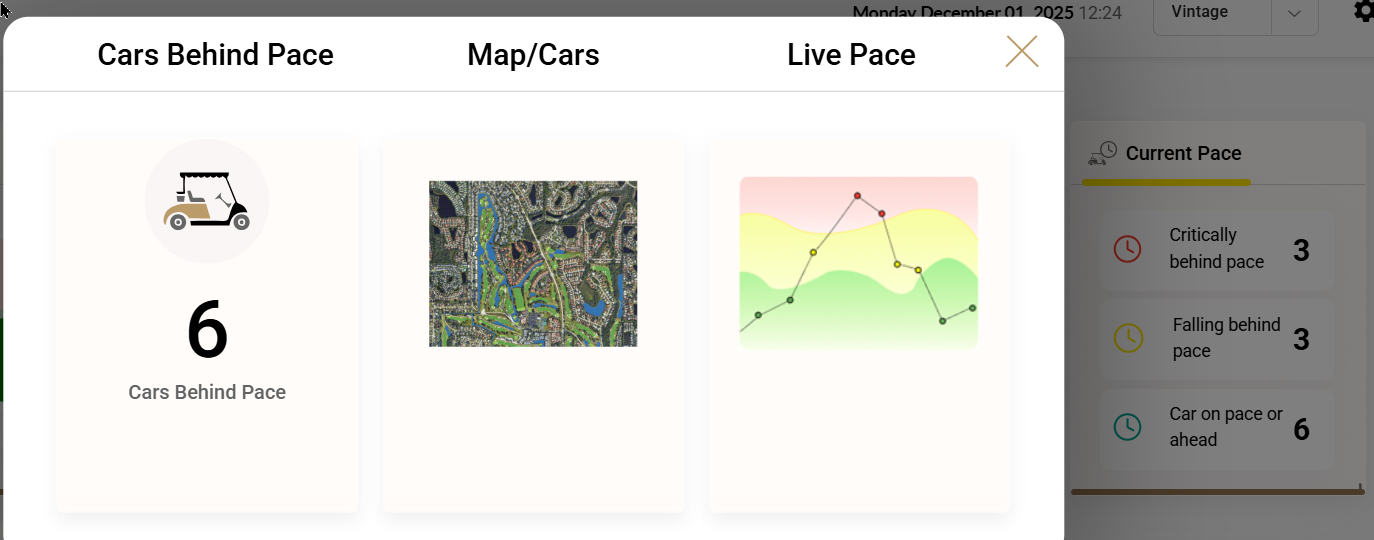
Clicking the tile opens a submenu with the following navigation options:
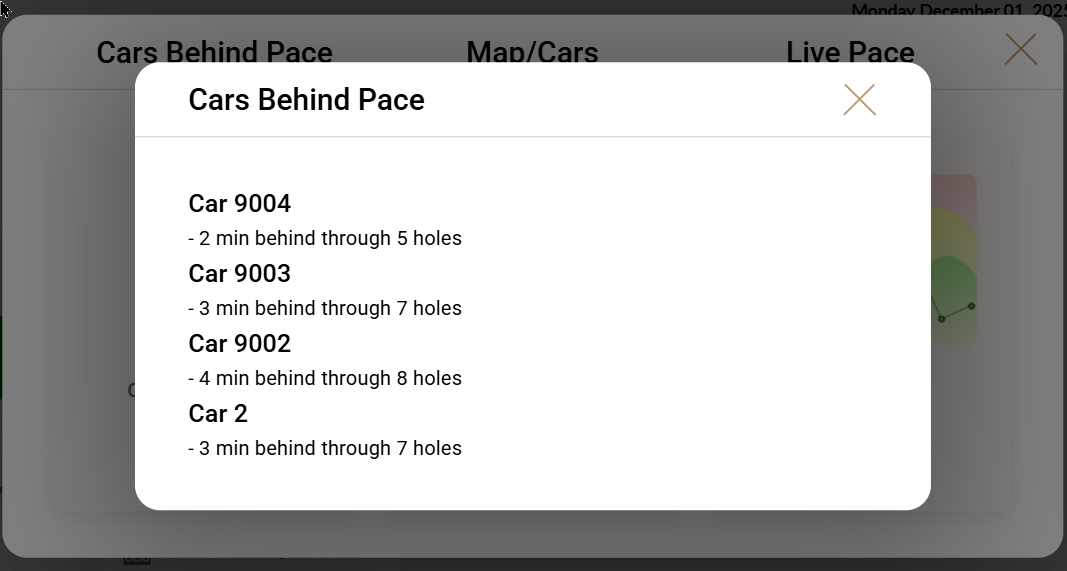
- Cars Behind Pace: Opens the Cars Behind Pace list.
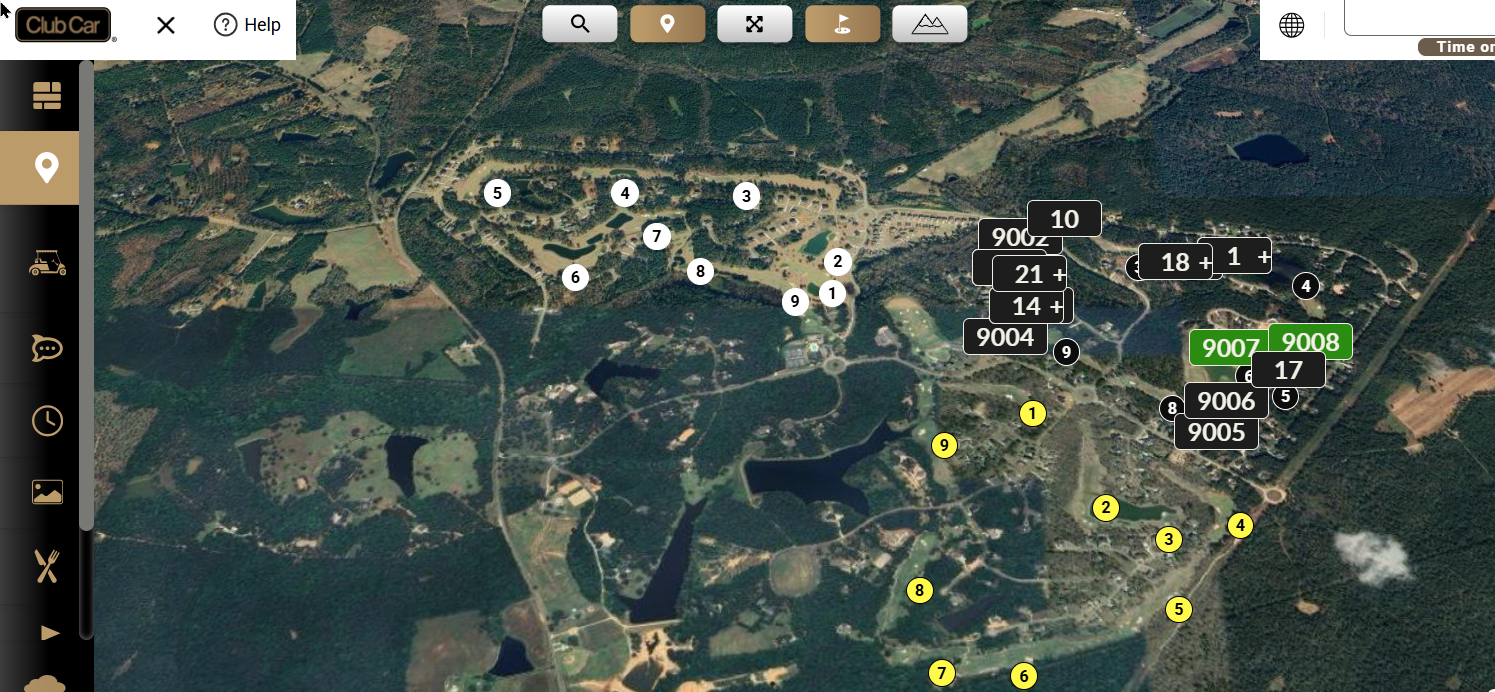
- Map/Cars: Opens the course map.
- Live Pace: Opens the Live Pace page.
Car Movement
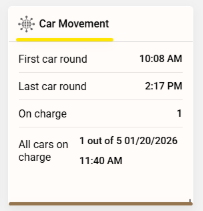
The Car Movement tile now combines the original Car Movement and Fleet Readiness information. It displays:
- First Car Round: Start time of the first round, such as 6:40 AM.
- Last Car Round: Start time of the last round, such as 6:45 PM.
- Cars on Charge: Number of cars currently charging.
- All Cars on Charge: Time when the entire fleet was on charge.
Note: The Cars on Charge count matches the Fleet Charge Summary only for cars plugged into a charger on the same day. Because the database stores a single on-charge record, counts may differ for other days.
Clicking the tile opens a submenu:
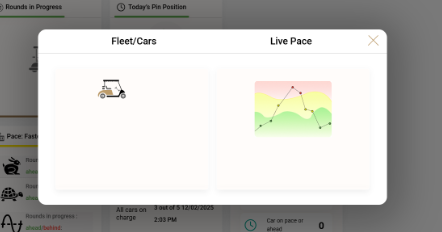
- Fleet/Cars: Opens the Fleet Cars page.
- Current Pace Chart: Opens the Current Pace Chart.
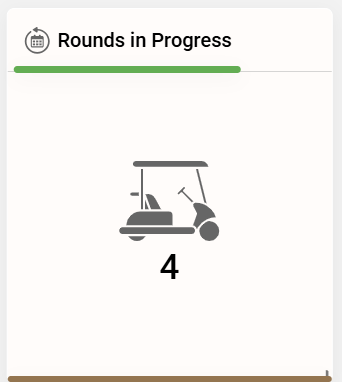
Rounds in Progress
The Today's Rounds tile has been renamed Rounds in Progress and now reports rounds currently underway. Clicking it opens the Usage Report. This report is available only when the course uses Max Holes Played or receives data from the electronic scorecard.
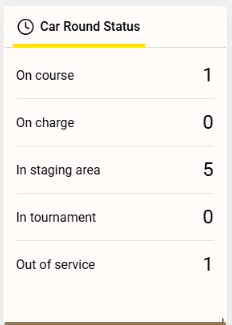
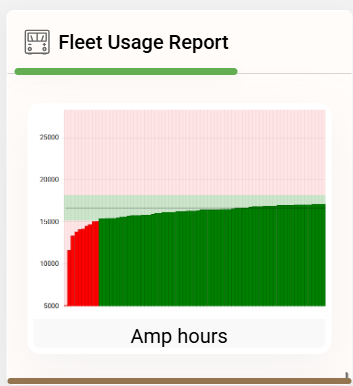
Car Round Status
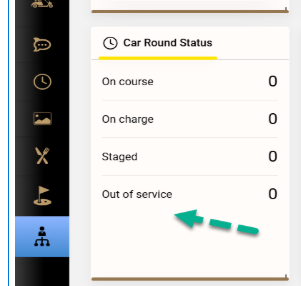
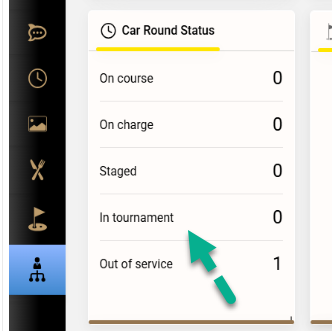
The tile displays vehicle counts in up to five categories:
- On Course
- On Charge
- Staged
- In Tournament, when the site interfaces with Golf Genius
- Out of Service
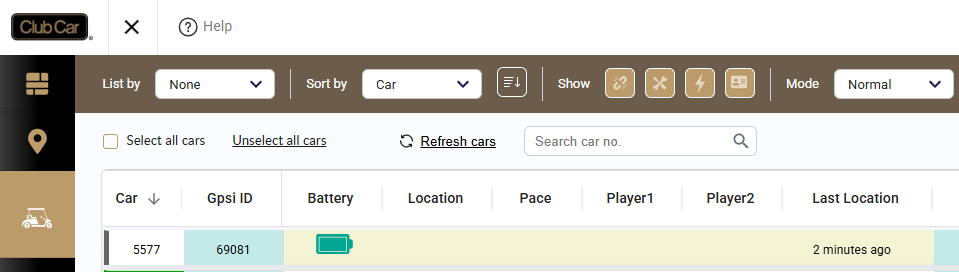
Clicking the tile opens the Fleet page with the list filter set to None and the sort filter set to Car.
The In Tournament category counts cars involved in a Golf Genius tournament.
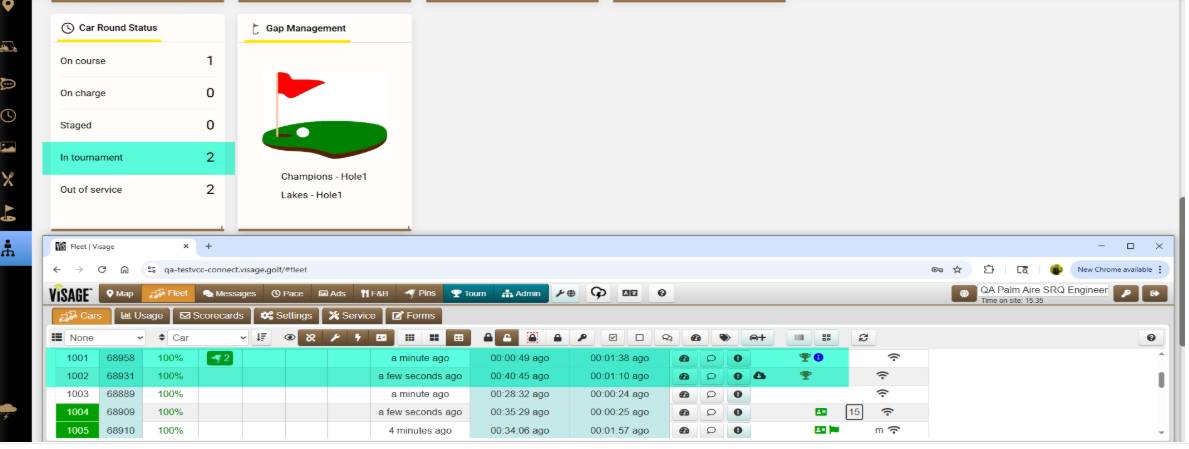
Car Selection and Battery Status
The Car Selection tile has been enhanced and renamed Car Selection/Battery Status. It displays six battery-status categories. Clicking the tile opens the Fleet page with the list filtered by On Charge.
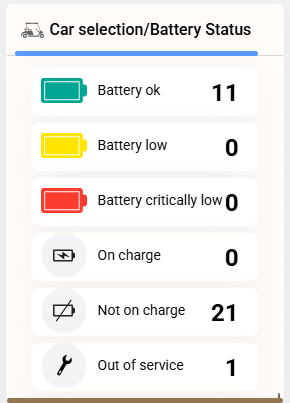

Fleet Usage Reports
The Fleet Usage Reports tile and the Fleet > Usage page now select reports according to the site's vehicle types. Clicking the tile opens the Fleet Usage Report.
| Fleet composition | Reports displayed |
|---|---|
| FLA vehicles only | Odometer, Amp Hours, AH per Mile, and Rounds/Holes |
| Lithium vehicles only | kW Hours, Wh per Mile, Odometer, and Rounds/Holes |
| Gas vehicles only | Odometer and Rounds/Holes. The starting odometer value must be entered under VCC > Fleet > Car Status. |
| Mixed fleet using CAN or LIN | All charts |
| Mixed fleet using CAN, LIN, or GCCM | All charts |
Rounds Completed
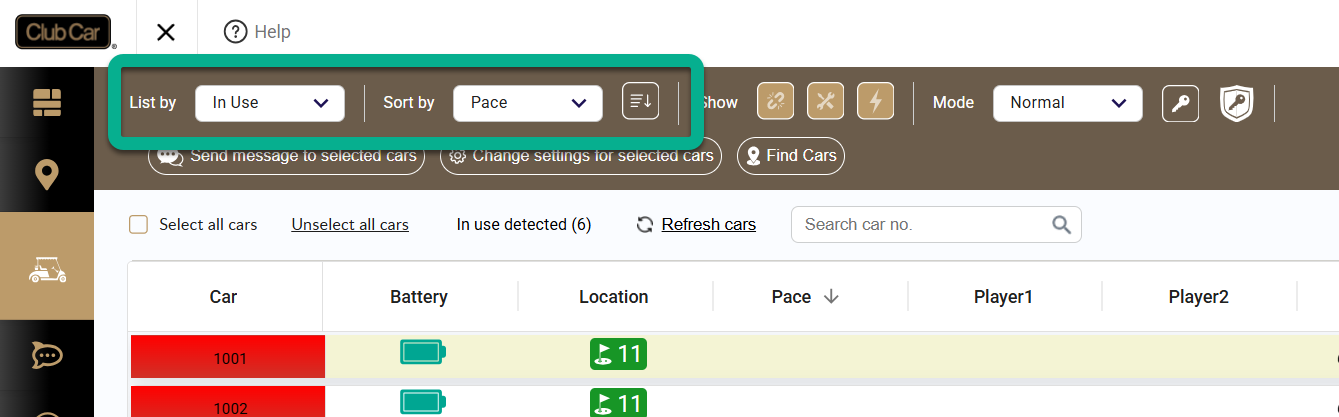
Clicking the Rounds Completed tile now opens the Fleet page, filtered by In Use and sorted by Pace.
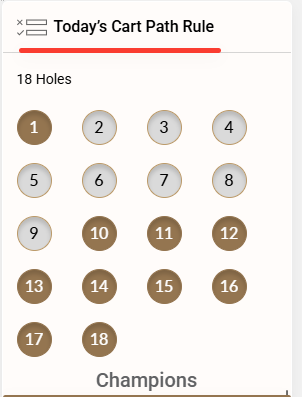
Today's Cart Path Rule
The tile has been reduced in size. Clicking it opens Map > CPO with the CPO tab active.
Today's Ads
Clicking the Today's Ads tile now opens the Campaigns page.
Golf Genius Tournament Status
The Car Round Status tile now includes an In Tournament count for cars involved in a Golf Genius tournament. This category appears only for sites that interface with Golf Genius.
Action Zone Infraction
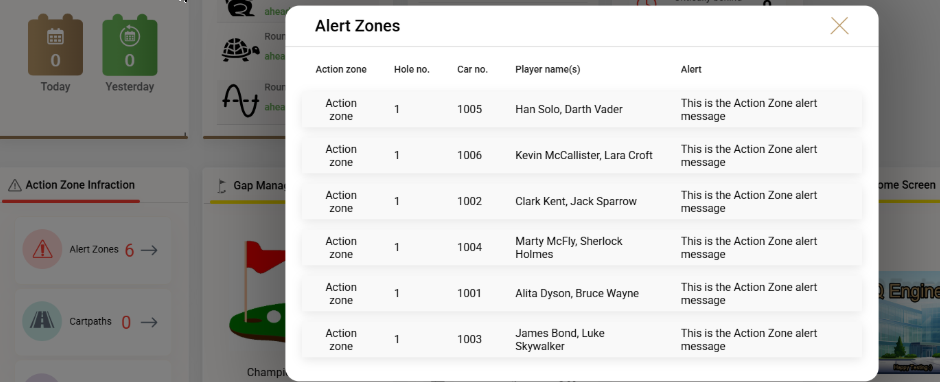
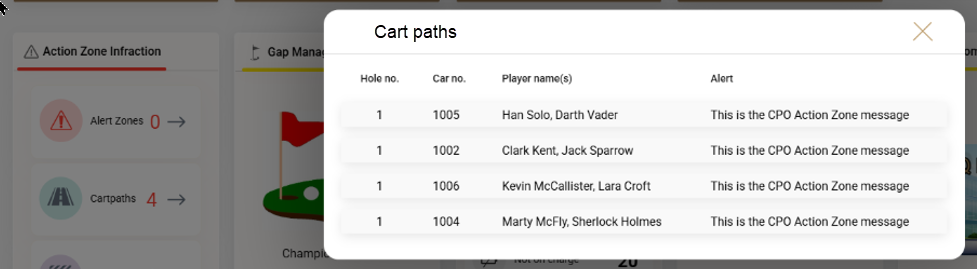
The tile has been reduced to medium size and renamed Action Zone Infraction. It summarizes three infraction types: Alert Zone, Car Path, and Geofence.
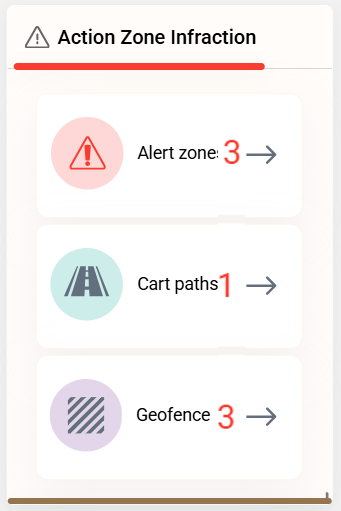
Each category provides a drill-down view with additional information:
- Alert Zone: Action-zone name, hole number, car number, player name or names, and alert.
- Car Path: Hole number, car number, player name or names, and alert.
- Geofence: Car number, player name, and geofence location.