

Connect VCC Release 26.07.07+2
Member Car Updates
This release introduces Member Car and Member Car/Special Needs support across Fleet, Map, Messages, Pace, Max Speed, and Action Zones. Availability and control depend on the Member Car feature setting, the selected tracking level, and the user's role.
Fleet Filters and Visibility
The Fleet > Cars filters now include Member Car and Member Car/Special Needs vehicle types.
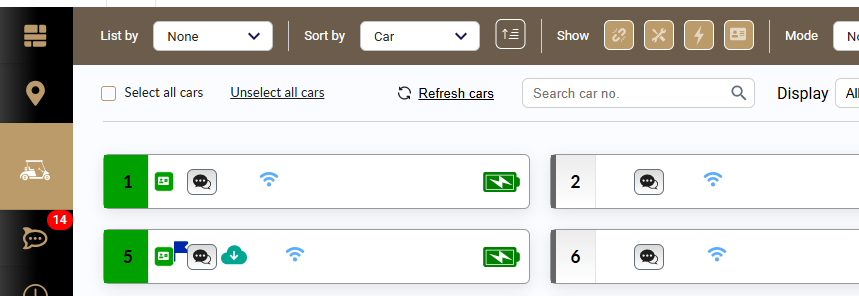
Feature enabled
- The filter area displays the Member Car icon.
- Selecting the icon filters the fleet to Member Car and Member Car/Special Needs vehicles.
- Master, Basic, and Read-Only users can see Member Cars that meet the site's configured tracking conditions.
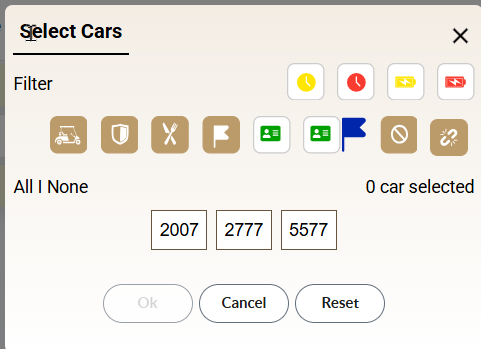
Feature disabled
The Member Car filter is hidden. Member Cars are visible only to Admin and Support users.
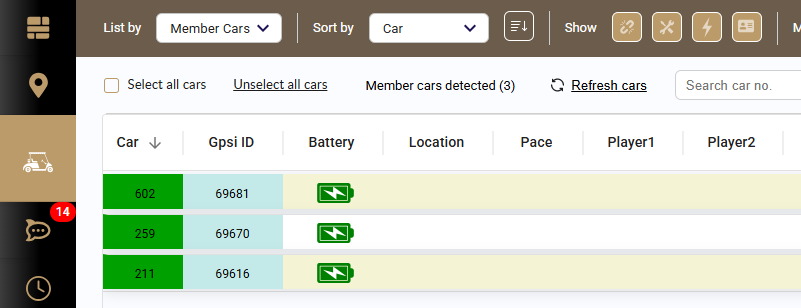
The List By filter can group Member Cars ahead of standard fleet vehicles.
Member Car Icons and Legends
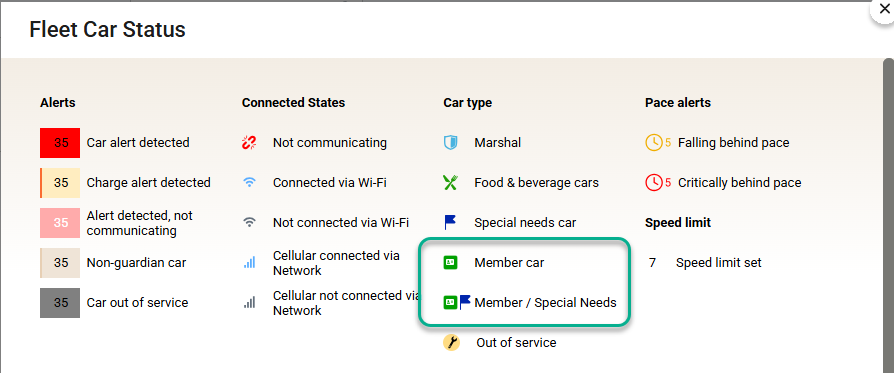
The Car Detail, Map, and Fleet legends now include two new vehicle types. Member Car/Special Needs vehicles use the new Member Car icon with a blue flag.
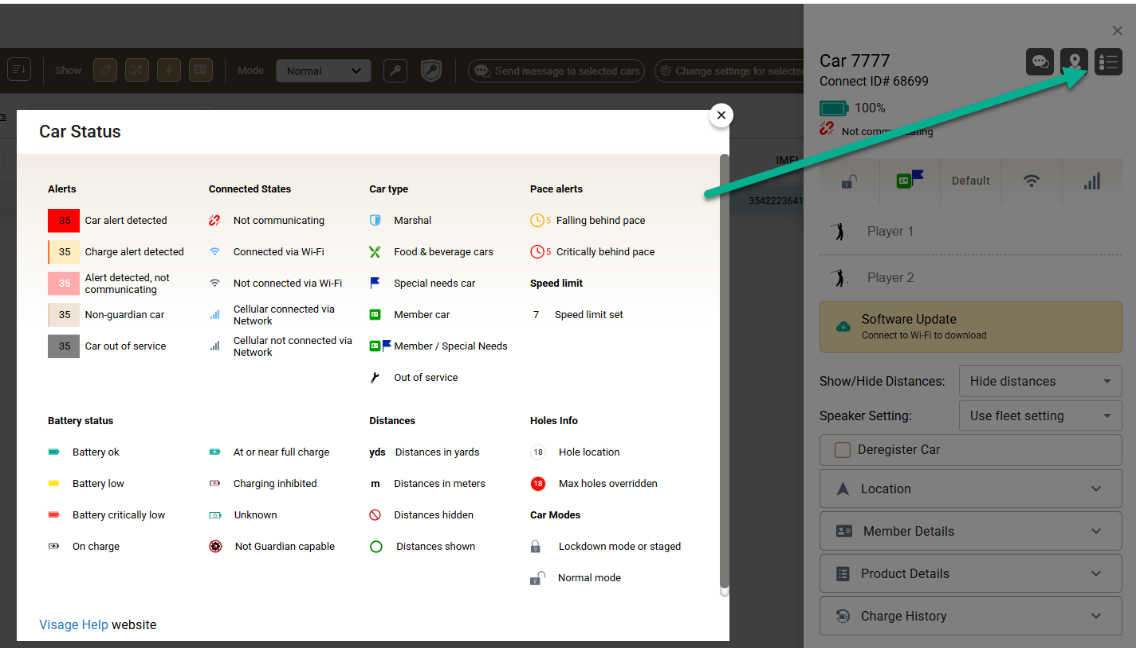
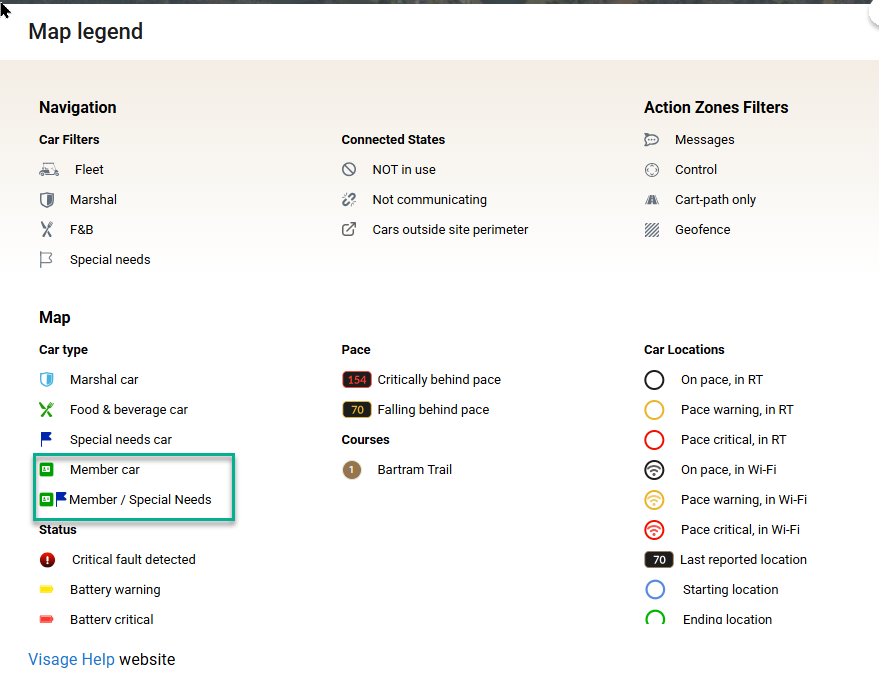
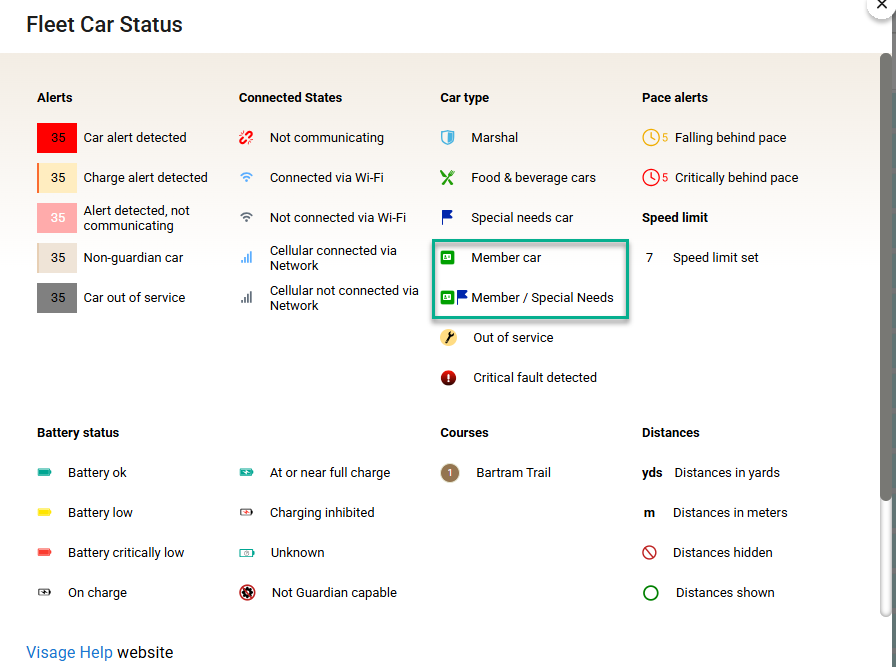
The Member Car/Special Needs icon is used in Car Detail, the Fleet grid, small and large Fleet tiles, Find Cars, and Select Cars.
Member Car Settings
Admins can configure Member Car Tracking and Control under Fleet > Settings. This Admin-only section is displayed in blue.

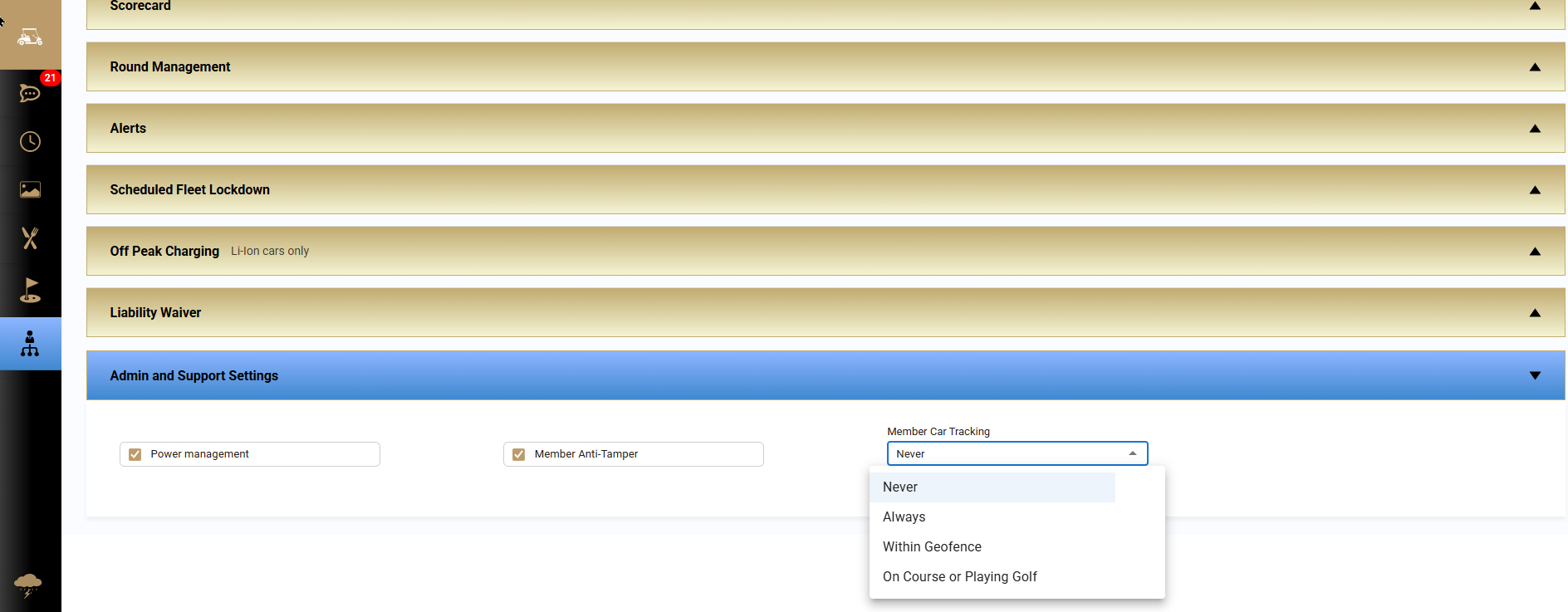
| Tracking level | Tracking and control behavior |
|---|---|
| Never | VCC users cannot track or control the Member Car. |
| Always | Users can track and control the vehicle and change its maximum speed anywhere, subject to Visage Real-Time tracking requirements. |
| Within Geofence | Tracking, control, and maximum-speed changes are available only while the vehicle is inside the geofence. They stop when the vehicle exits the geofence. |
| Playing Golf | Tracking, control, and maximum-speed changes begin after the vehicle triggers a hole extent while the Game State Manager has an active round. They stop when the active round ends. |
Visibility: When the Member Car feature is enabled, non-Admin visibility follows the selected tracking level. For example, with On Course or Playing Golf selected, a Master user sees the vehicle only during its qualifying round and loses visibility after the round timeout. When the feature is disabled, Member Car visibility is limited to Admin and Support users.
Show and Hide Distances
Updates to the site's Show/Hide Distances setting are now applied to Member Cars.
| Member Car feature | Behavior |
|---|---|
| Enabled | Authorized users may change Show/Hide Distances, and the selection persists after a reboot or the end of a round. |
| Disabled | The selection does not persist and resets after a reboot or the end of a round. Member Cars remain hidden from users other than Admin and Support. |

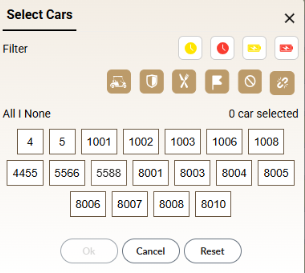
Member Car types also appear on the Select Cars screen when the feature is enabled.
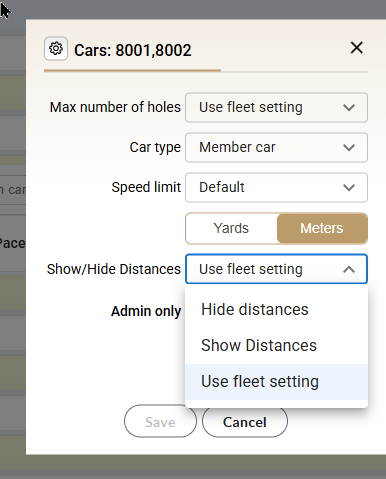
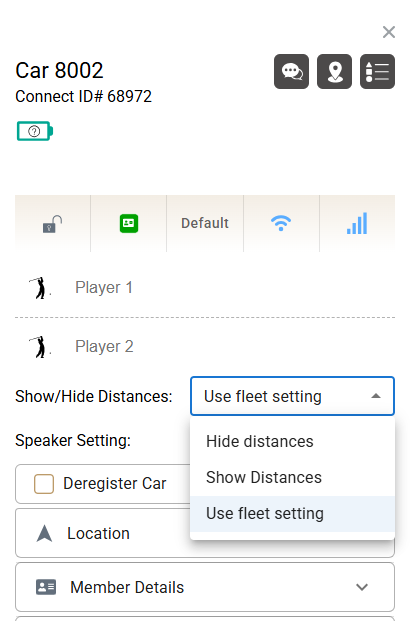
Current restriction: When the Member Car setting is disabled, users cannot change Show/Hide Distances, including Admin users.
Car Detail and Bulk Settings
Assigning a vehicle type
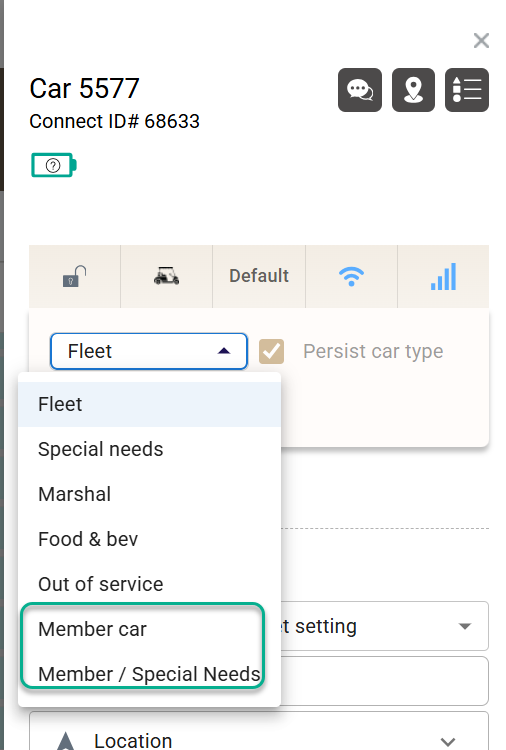
When the Member Car feature is enabled, authorized users can assign Member Car or Member Car/Special Needs from Car Detail. Basic and Read-Only users cannot make this change. When the feature is disabled, only Admin users can view and assign these vehicle types by selecting Include Member Cars.
Member information
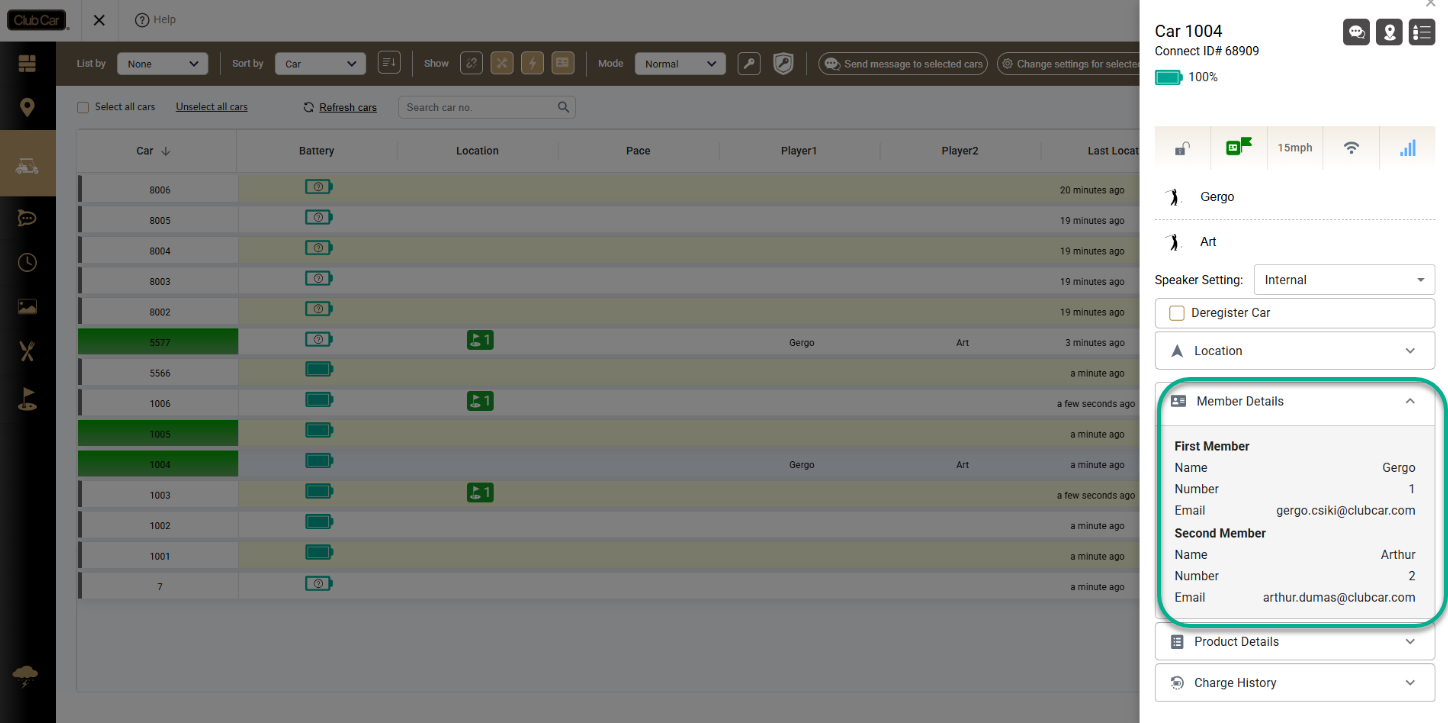
If the first or second member record contains a name, member ID, or email address on the VDU, that information appears in the current vehicle's Member Car tab. Otherwise, the tab remains blank.
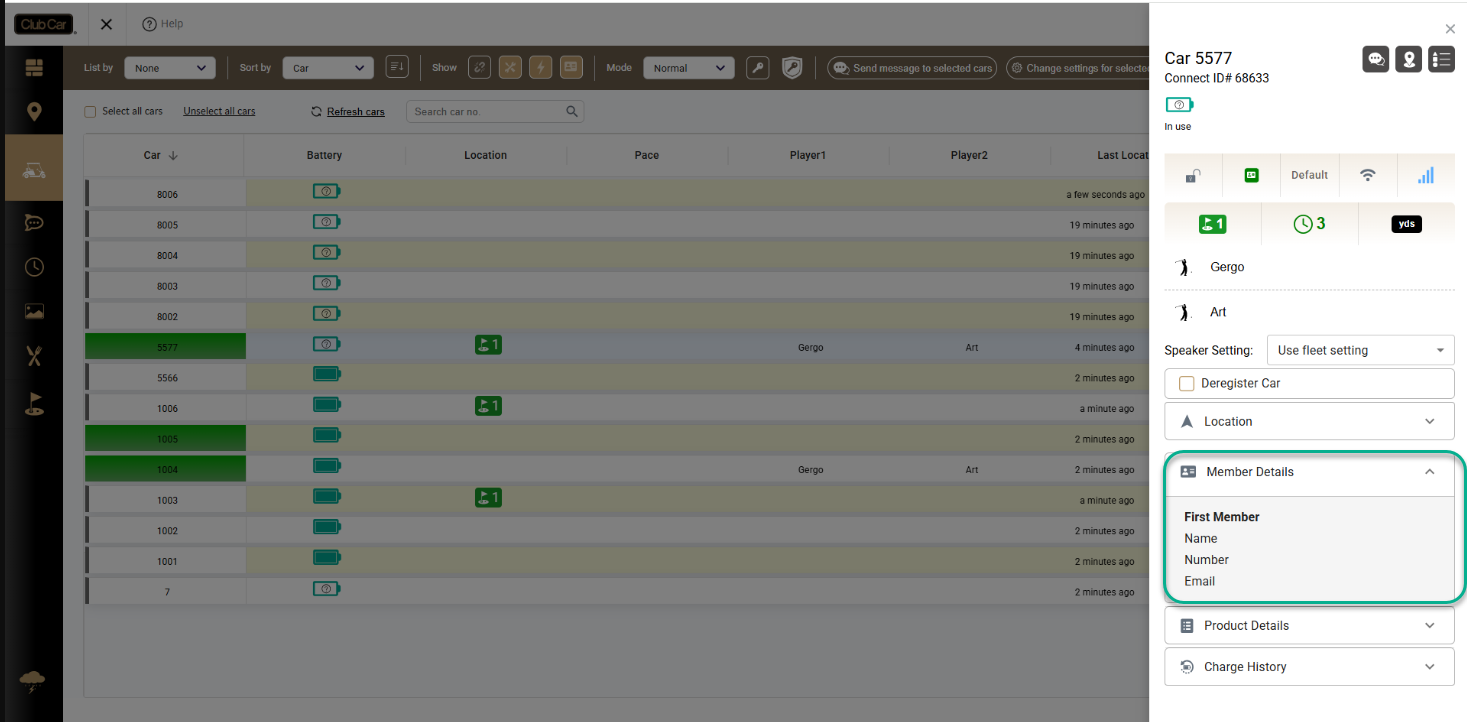
Read-Only and Basic access
Read-Only and Basic users can view, but cannot modify or save, Send Message to Car, Car Type, Speed, Player 1, Player 2, and Speaker settings.
Change settings for selected cars
When the Member Car feature is enabled, Member Cars can be included in bulk changes under Fleet > Cars > Change Settings for Selected Cars.

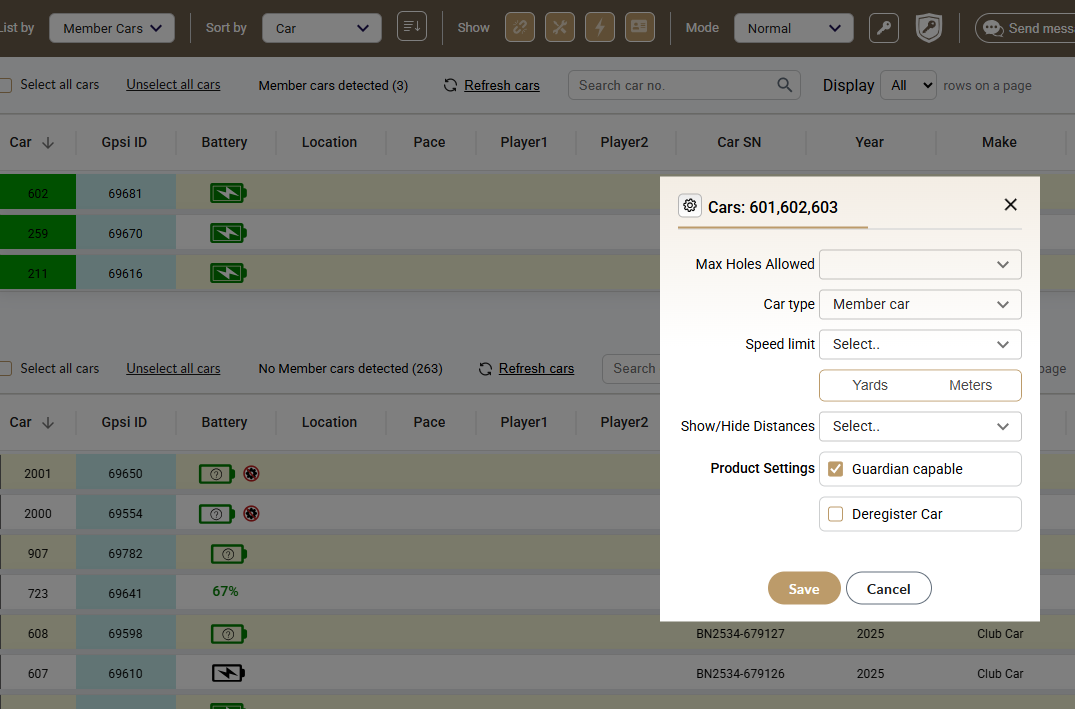
Restriction: Member Cars and Member Car/Special Needs vehicles cannot be placed in Staging mode or locked down.
Fleet Usage Reports
The Fleet > Usage report now supports Member Cars. Enable Include Member Cars to include their activity in the report.
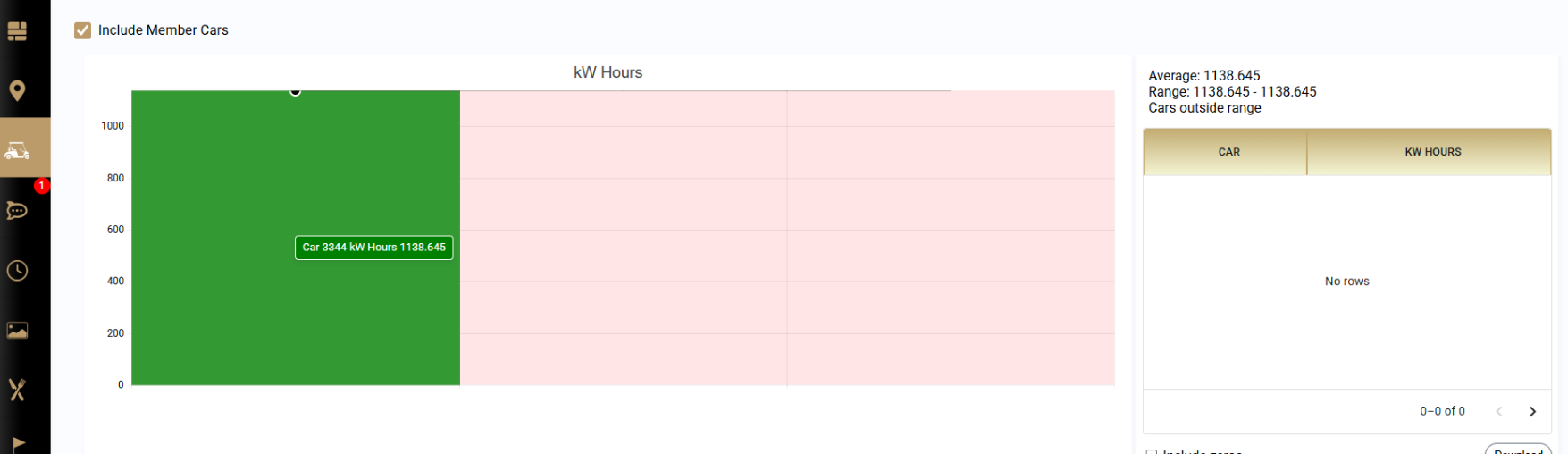
Maximum Speed
Site-level maximum-speed settings now reach Member Cars according to the selected Member Car tracking level.
- When the feature is enabled, Admin, Master, and Basic users may change the Member Car speed limit when permitted by the configured tracking level.
- Read-Only users cannot change the speed limit.
- When the feature is disabled, no user—including Admin and Support—can change the maximum speed of a Member Car.
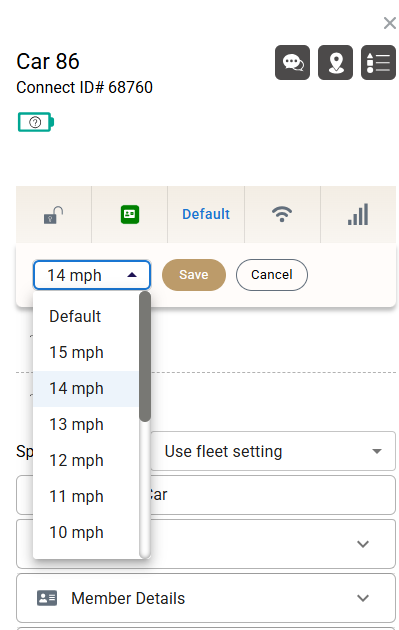
The available application levels are Never, Always, Within Geofence, and On Course or Playing Golf.
Action Zone interaction: Action Zone messages can still appear on the VDU before the configured Member Car tracking level is met, but Action Zone speed control will not apply. For example, when tracking is set to Within Geofence, a Member Car outside the geofence receives no Action Zone speed control; once inside, speed control applies in all qualifying Action Zones.
Map
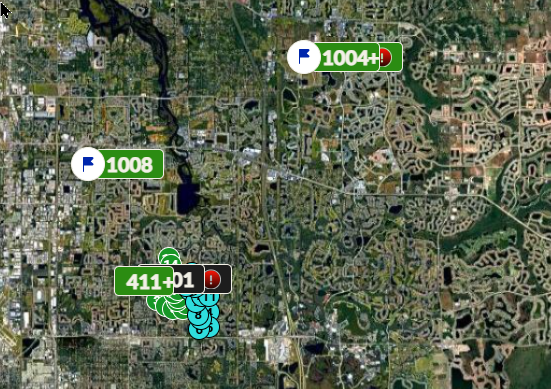
When the Member Car feature is enabled, Master, Basic, and Read-Only users can display Member Cars and Member Car/Special Needs vehicles on the Map. Visibility continues to follow the site's tracking setting; for example, a car does not appear outside the geofence when tracking is limited to Within Geofence.
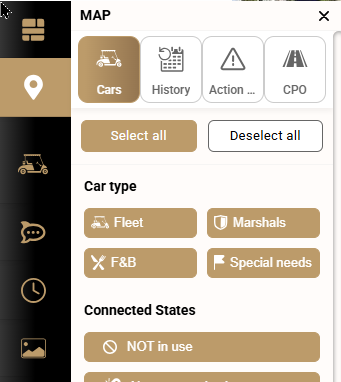
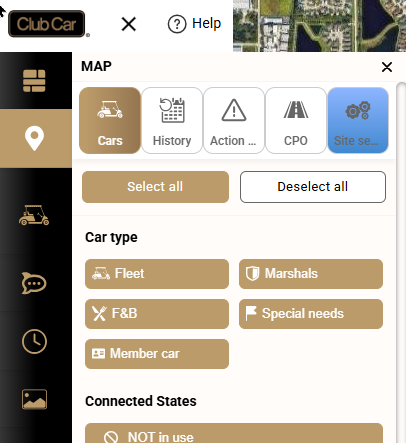
- Enabling the appropriate Map filter displays Member Cars in green with their corresponding vehicle icons.
- Disabling a Member Car or Member Car/Special Needs filter hides that vehicle type from the Map and Fleet view.
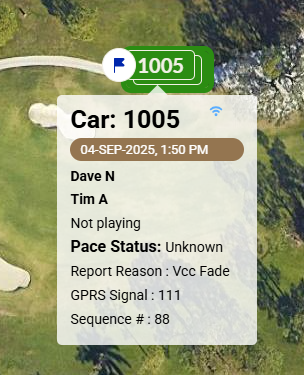
Member Car flyout
Master, Basic, and Read-Only users can view Member Car details while hovering over a visible vehicle. Member names appear in bold.
Map legend
The Fleet Car Status legend includes the new Member Car vehicle types.
Messages and Notifications
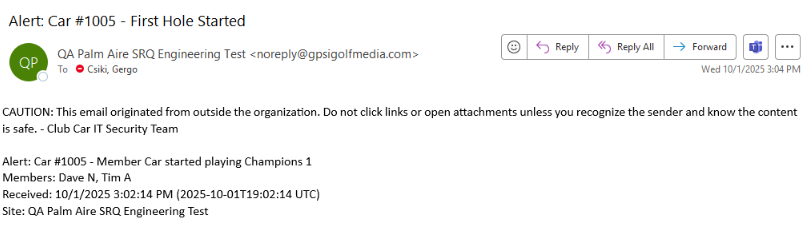
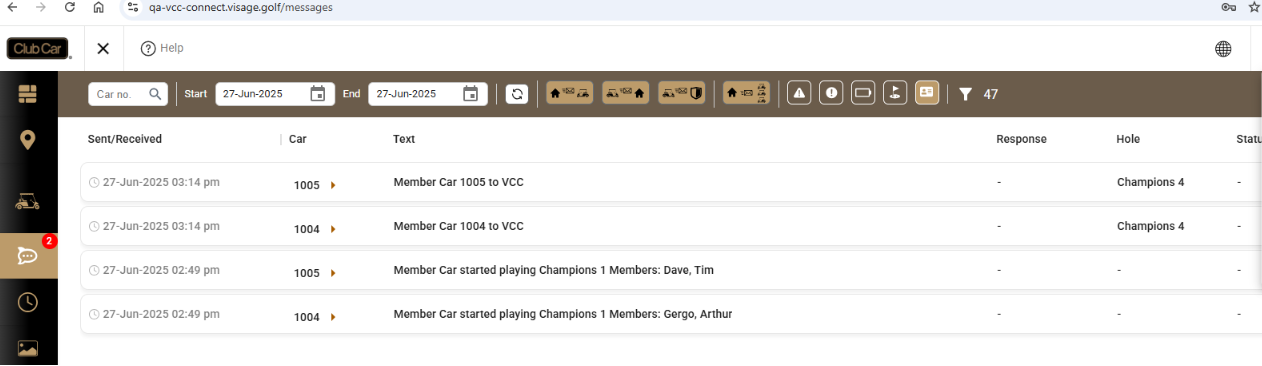
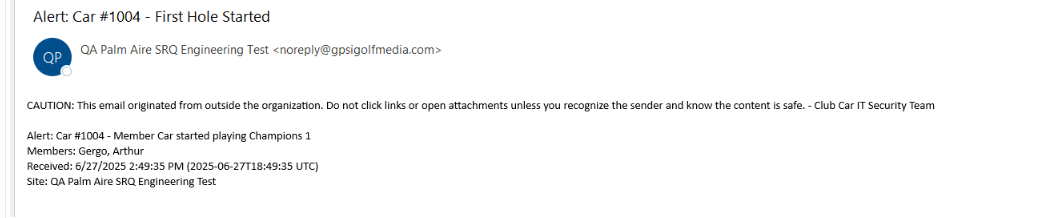
Member Car notifications can now include member names and apply to:
- A member beginning play or driving onto the course.
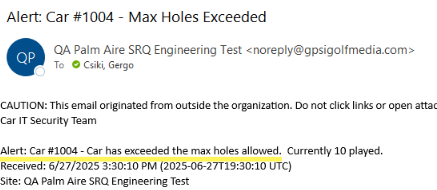
- A member exceeding the site's configured maximum number of holes.
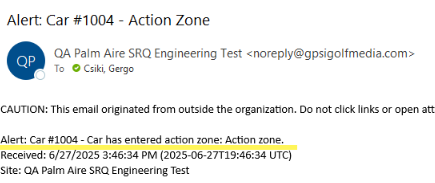
- A member entering an Action Zone configured for notifications.
Member Playing alert type
When the Member Car feature is enabled, Admin users and participating Master users can receive Member Playing notifications. Master, Basic, and Read-Only users can view Member Car messages in the Inbox and History. Start times and player names are recorded when the vehicle meets the Game State Manager requirements for In Use.
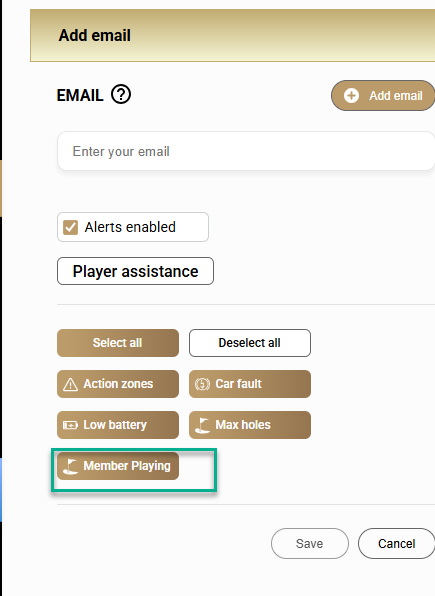
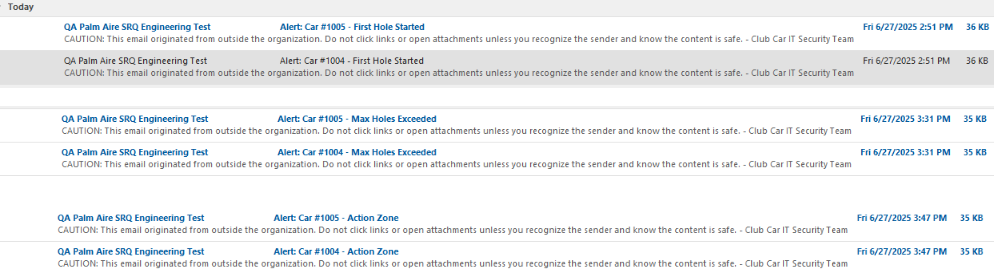
Email delivery is enabled when Email is selected for the notification and the Alerts checkbox is marked.
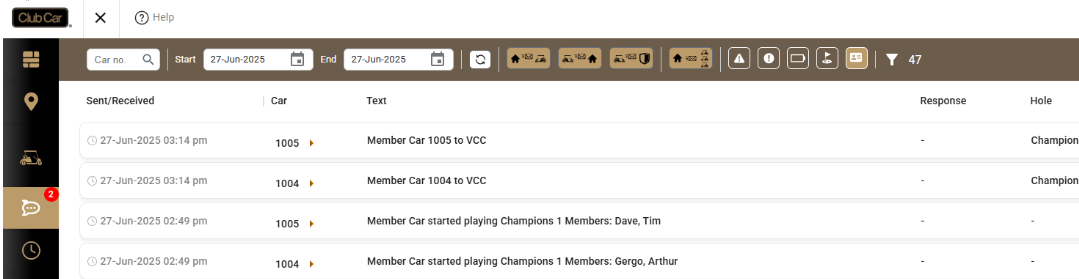
Message History
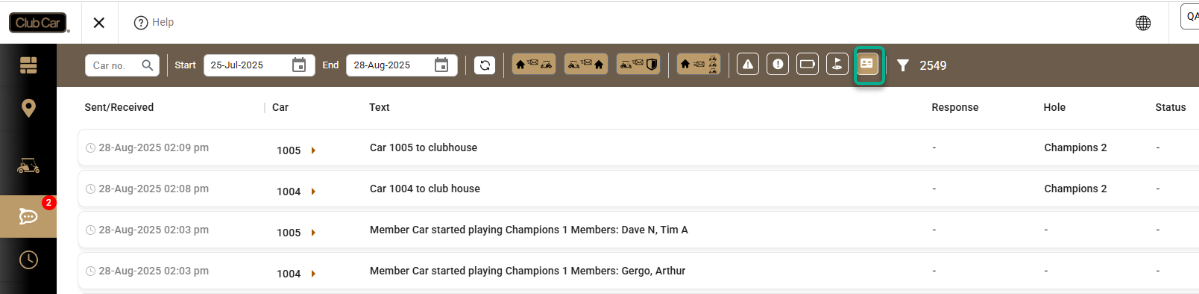
The History tab includes a Member Car filter. When the feature is enabled, Admin, Master, Support, Basic, and Read-Only users can view Member Car messages.


A new filter also allows users to show or hide messages generated when a Member Car drives onto the site.
Member Car Pace
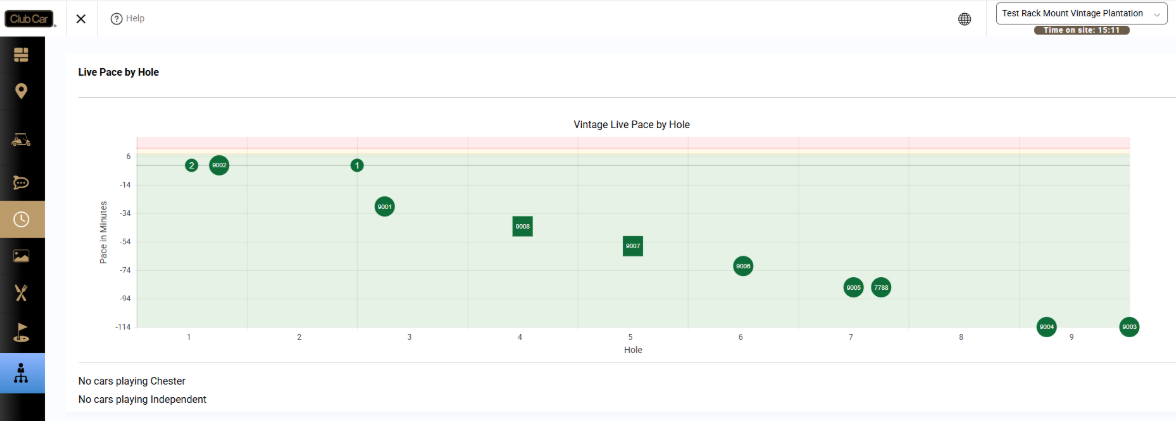
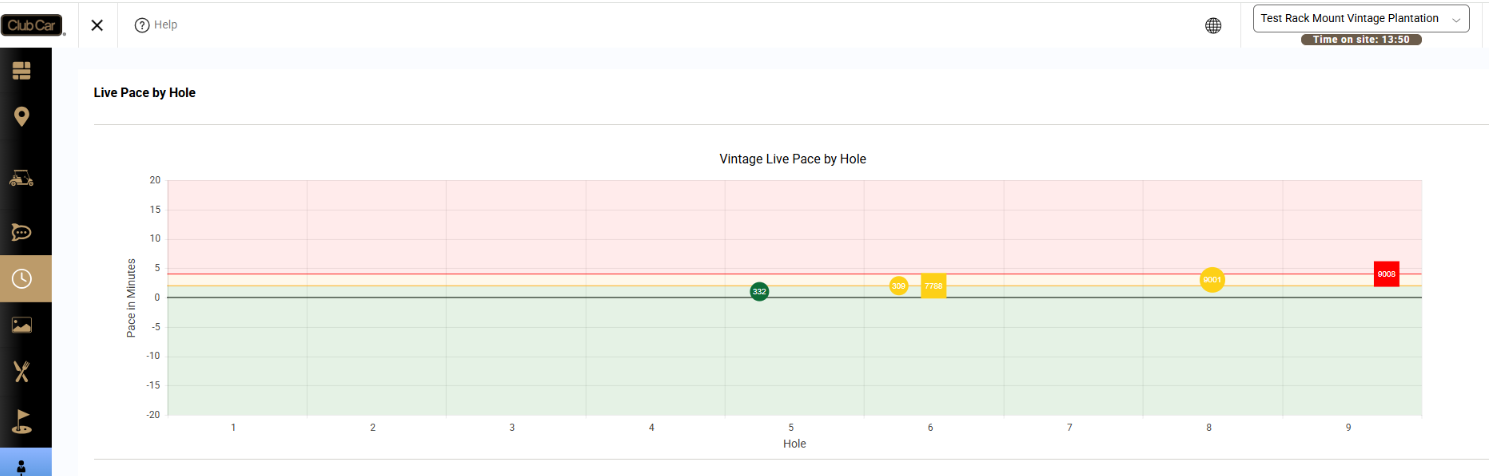
Member Cars are shown as square markers on the Live Pace graph. Their pace status uses the standard colors:
- Green: On pace
- Yellow: Behind pace
- Red: Critically behind pace
The car flyout also displays the member's name.
Action Zones
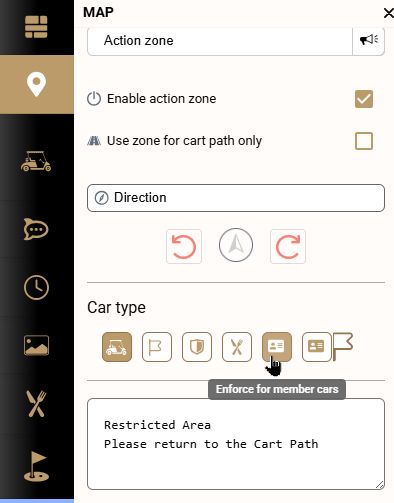
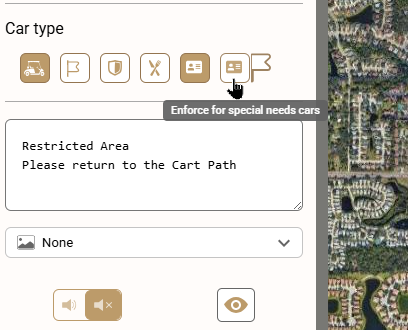
Action Zones can target Fleet Cars, Member Cars, and Member Car/Special Needs vehicles when the Car Control Module is purchased and the applicable site settings are enabled.
- Master users can view and enable or disable Action Zones for the supported vehicle types.
- Basic and Read-Only users can view the Member Car type control but cannot change it.
- To target Member Car/Special Needs vehicles, select both Member Car and Special Needs.
Advertising and media display
Action Zone media and hole-area advertisements displayed in the Consumer UI follow the Member Car Tracking and Control setting:
| Setting | Media behavior |
|---|---|
| Never | Member Cars and Member Car/Special Needs vehicles do not display Action Zone media or hole-area advertisements. |
| Always | They display all qualifying Action Zone media and hole-area advertisements. |
| Within Geofence | They display qualifying media only while inside the geofence. |
| On Course or Playing Golf | They display qualifying media only while on the course or playing golf. |